
weMapsLead is a Windows app that finds businesses on Google Maps by keyword and location, adds them to your contact list and then sends WhatsApp or email campaigns to them using templates you prepare. All your data stays on your own computer; features and system requirements are on the weMapsLead product page.
PDF guide: The same content is available as a printable weMapsLead User Guide (PDF, Turkish); the PDF is in Turkish.
Everything here applies to version 1.1.0. The app has a Turkish interface only, so the screenshots show the Turkish interface. Button and field names are given in Turkish as they appear in the app, with an English translation in brackets. Some screenshots still show the previous version number (1.0.0) at the bottom of the sidebar; page layouts and buttons are the same in 1.1.0. The sign-in and license screens were taken from 1.1.0.
What can you do with weMapsLead?
- Toplama (Collection): You enter a keyword and a location (e.g. "hairdresser" and "Kadıköy"). The app collects the business name, category, address, phone, website, rating, review count and map link.
- Kişiler (Contacts): Search, filter, tag, edit and export the contacts you collected or imported from a file.
- Şablonlar (Templates): WhatsApp and email messages are filled in automatically with contact details.
- Kampanyalar (Campaigns): Messages go out to the selected contacts one by one; you set the speed and the daily limit.
- WhatsApp: Link your business phone with a QR code. The Cloud API is also available if you prefer it.
- Kayıtlar (Logs): See every send attempt and download the list as CSV.
Contacts, templates, campaigns and the WhatsApp session are stored only on your computer. The app does not send usage statistics or advertising data. An internet connection is needed for license checks, updates and for Google Maps, WhatsApp and email sending.
Responsible use
weMapsLead is a tool. Making sure your messages comply with the law and with platform rules is your responsibility.
- When contacting businesses in Turkey, follow the Personal Data Protection Law No. 6698 (KVKK), and where applicable the European data protection rules (GDPR). If you work in another country, check the data protection and marketing rules that apply there.
- Respect WhatsApp's rules for business use and the consent of the people you want to reach. Do not message people who do not want to hear from you.
- If someone replies "DUR", "İPTAL" (Turkish for "stop" and "cancel") or another opt-out word you set, the app adds that number to the block list and never messages it again. Contacts you mark as "İletişimden çıktı" (Opted out) are not messaged either.
- An unsubscribe line is added to email messages automatically.
How do you install weMapsLead?
weMapsLead runs on Windows 10 and Windows 11 (64-bit). You do not need to install anything else, such as Node.js.
- Run the installer,
weMapsLead-Setup-1.1.0.exe. - The app is installed for your Windows user only and does not ask for an administrator password. It goes into the
%LOCALAPPDATA%\Programs\weMapsLeadfolder. - Shortcuts are added to the Start menu and the desktop. You can open the app right away with the "weMapsLead'i çalıştır" (Run weMapsLead) option on the last page.
Windows SmartScreen warning
The installer is not code-signed, so Windows SmartScreen may show a warning such as "Windows protected your PC". In that case click More info, then Run anyway.
If Smart App Control is turned on, Windows sometimes blocks new unsigned programs completely. If you see such a warning, allow the app using the options Windows offers, or contact WeSoftware support.
Browser setup on first launch
Collection and WhatsApp Web need a browser. If Google Chrome or Microsoft Edge is installed, the app uses it and downloads nothing extra. Otherwise it downloads a portable copy of Chromium on first launch; this is a one-time, fairly large download. While it runs, a "Tarayıcı hazırlanıyor" (Preparing browser) notice appears at the top of the page, and Collection and WhatsApp wait until the download finishes. If it fails, press Tekrar dene (Try again) or install Chrome or Edge.
Closing and reopening the window
When you close the weMapsLead window, background work stops as well, including collection and the WhatsApp connection. If you click the shortcut while the app is already open, no second copy starts; the existing window comes to the front.
Uninstalling
In Windows, go to Settings → Apps → weMapsLead → Uninstall. The program files are removed. Your contacts, license sign-in and WhatsApp session stay in the %LOCALAPPDATA%\weMapsLead folder, so after reinstalling you continue where you left off. To remove everything, delete that folder manually as well.
How do you sign in to weMapsLead for the first time?
The app is locked on first launch. You sign in with the username and password that came with your order; these credentials are your license.
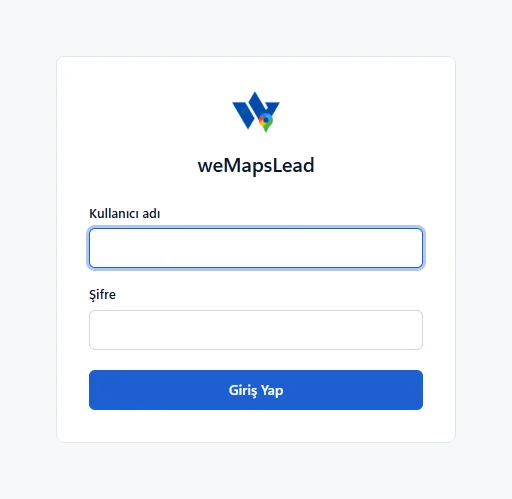
- Enter your username and password.
- Press Giriş Yap (Sign in).
- If sign-in succeeds, the app opens and the license is bound to this computer.
The license is bound to one computer
The license is bound to the computer where you first sign in. You cannot sign in on another computer with the same credentials. If you need to change computers, contact WeSoftware support.
Online checks and offline use
The app checks the license at regular intervals. Without internet it keeps working for up to 7 days after the last successful check. When that period also runs out, the app locks and shows a message saying the license server could not be reached and the 7-day offline period has ended. Connect to the internet and sign in again, or use the Yeniden dene (Try again) button.
When the license expires and renewal
When the license expires, the app locks and shows "Lisans süresi doldu." (License expired.). Renewal extends the same license; you do not get a new username or password. After renewing, type your password on the sign-in screen and press Giriş Yap (Sign in), or use Yeniden dene (Try again) to run the check.
What happens when the app is locked?
When the license is not valid (expired, revoked, bound to another device, offline period over), a full-screen lock appears with a red warning at the top and sign-in fields below. While locked, collection, starting campaigns and linking WhatsApp do not work.
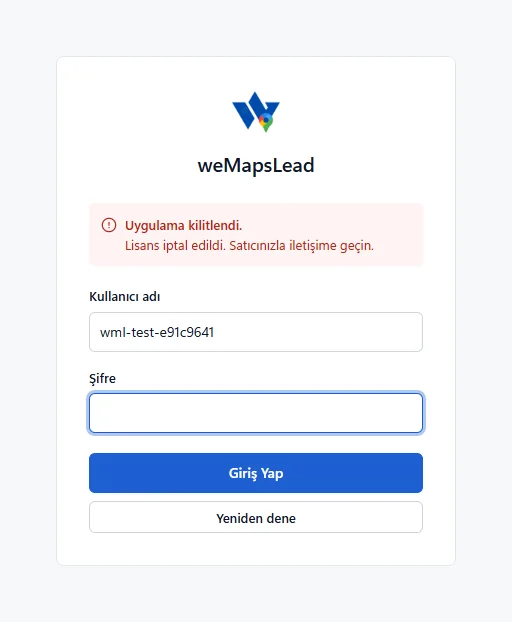
| Message | What it means |
|---|---|
| Lisans süresi doldu. (License expired.) | The term has ended. Renew the license; the same username and password stay valid. |
| Lisans iptal edildi. Satıcınızla iletişime geçin. (License revoked. Contact your seller.) | The license has been closed. Talk to support. |
| Bu lisans başka bir bilgisayara bağlı. (This license is bound to another computer.) | The license is on the computer where it was first activated. Contact your seller to change devices. |
| Kullanıcı adı veya şifre hatalı. (Wrong username or password.) | Check your details and try again. Many wrong attempts in a row can block sign-in for a short time; wait a little. |
What is in the weMapsLead interface?
After sign-in you see a menu on the left, the page title at the top and the license and WhatsApp status at the top right. The left menu has three groups:
| Group | Pages |
|---|---|
| Veri (Data) | Panel (Dashboard), Toplama (Collection), Kişiler (Contacts) |
| Gönderim (Sending) | Şablonlar (Templates), Kampanyalar (Campaigns), WhatsApp |
| Sistem (System) | Ayarlar (Settings), Kayıtlar (Logs), Lisans (License) |
The bottom of the sidebar shows the license status (e.g. "Lisans: etkin", License: active) and the version number. Clicking the License indicator at the top right opens the License page; clicking the WhatsApp indicator opens the WhatsApp page. When WhatsApp is linked, the indicator shows "Bağlı" (Connected) and a masked phone number; otherwise it shows "Bağlı değil" (Not connected).
The app follows the Windows light or dark theme. There is no separate theme button.
What does the Panel (Dashboard) show?
Panel is the start page. It shows today's summary and recent activity.
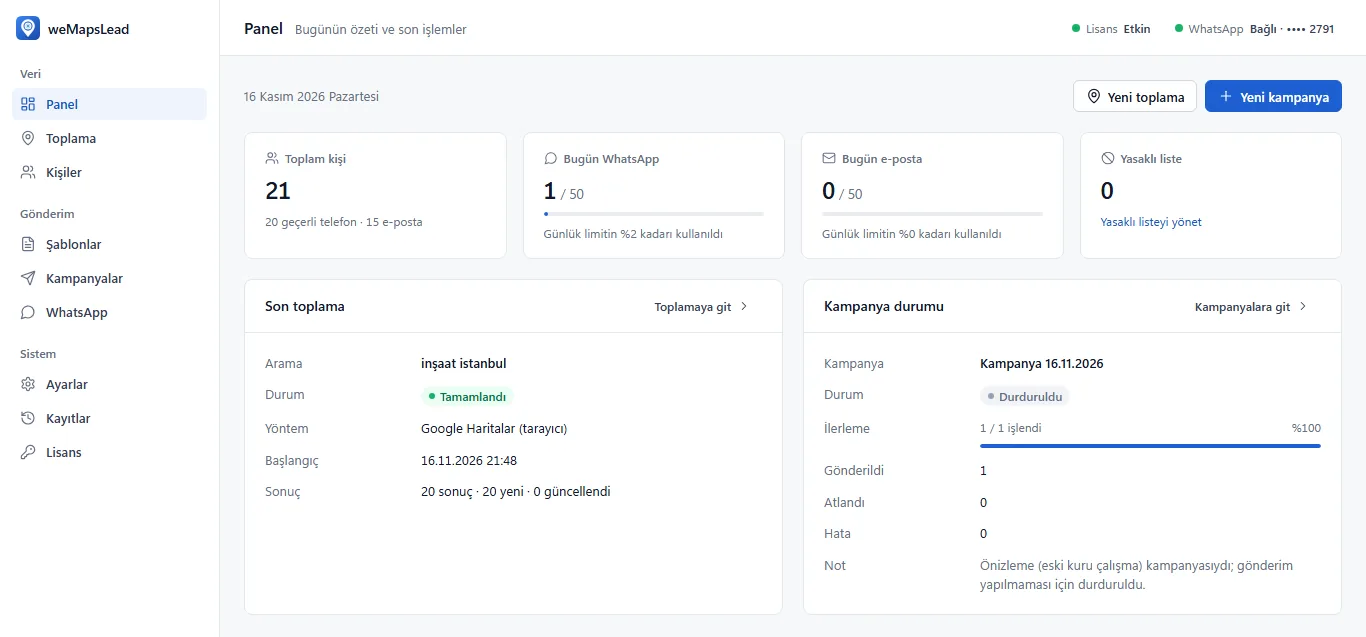
- Toplam kişi (Total contacts): how many contacts are in the list and how many have a valid phone number and email.
- Bugün WhatsApp and Bugün e-posta (Today WhatsApp / email): successful sends that day (Istanbul time) against the daily limit.
- Yasaklı liste (Block list): how many numbers and email addresses are excluded from sending. The "Yasaklı listeyi yönet" (Manage block list) link goes to Settings.
- Son toplama (Last collection): the latest search, its status and method, and the found / new / updated counts.
- Kampanya durumu (Campaign status): the latest campaign's progress bar with sent, skipped and error counts.
The Yeni toplama (New collection) and Yeni kampanya (New campaign) buttons at the top right open those pages. If you have no contacts yet, a "Başlamak için kişi ekleyin" (Add contacts to get started) notice appears.
How do you collect business data from Google Maps?
On the Toplama (Collection) page you search by keyword and location. The search form is on the left, the live log on the right, and the results of the current job and past jobs below.
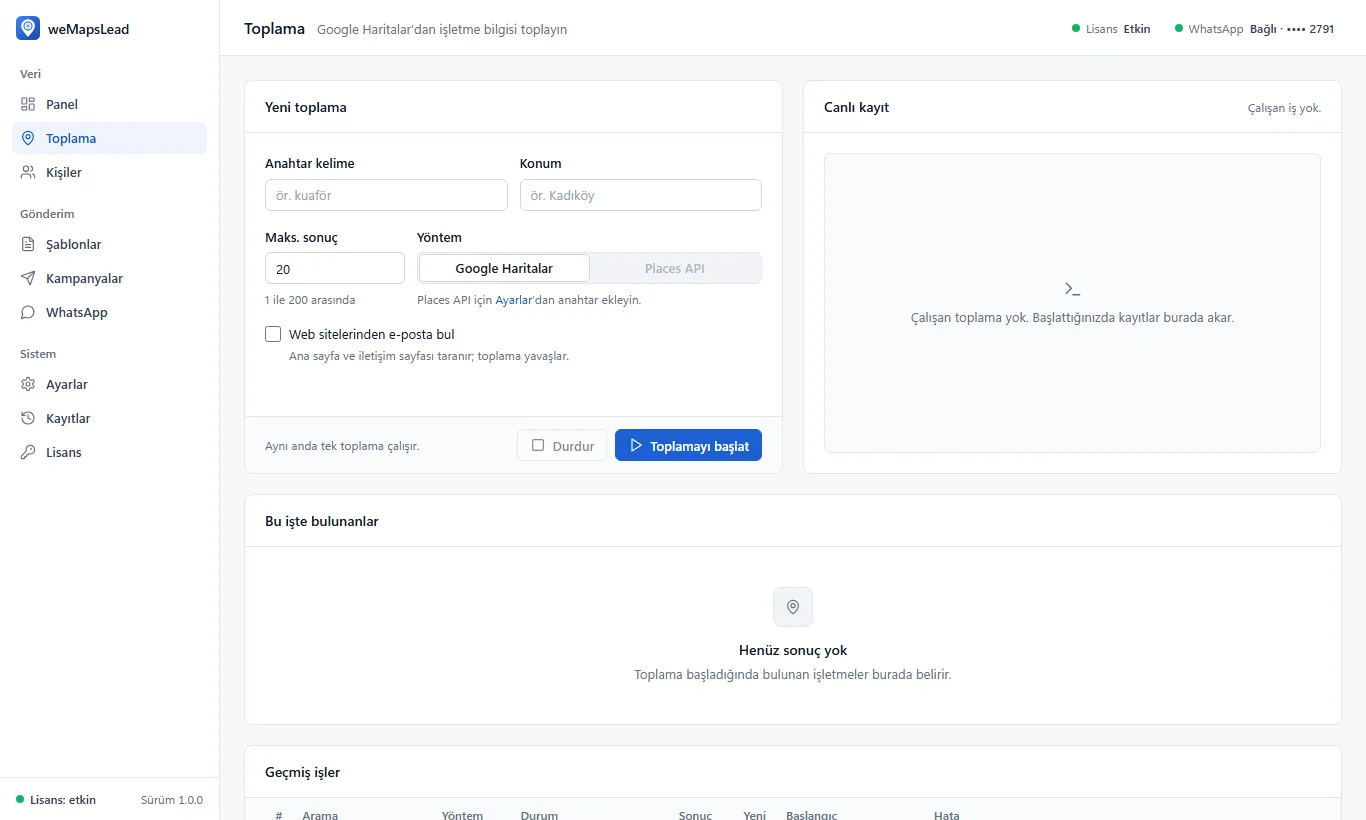
- Enter an Anahtar kelime (Keyword), e.g. "hairdresser".
- Enter a Konum (Location), e.g. "Kadıköy".
- Set Maks. sonuç (Max. results) between 1 and 200. The default is 20; start small on your first try.
- For Yöntem (Method), Google Haritalar (Google Maps) is usually enough. The app runs the search in a background browser, which can take a while. Places API is optional and only becomes available after you enter a Google Places API key in Settings.
- Optionally tick Web sitelerinden e-posta bul (Find emails on websites). The business's home page and contact page are scanned as well, which slows collection down.
- Press Toplamayı başlat (Start collection).
Only one collection runs at a time. You can cancel a running job with Durdur (Stop).
Live log, results and past jobs
Lines scroll through the Canlı kayıt (Live log) area on the right as the job progresses, with a progress bar and found / new counts at the top. If email search is on, that stage is shown separately. When the job ends you see "Bitti: … sonuç." (Done: … results.).
The Bu işte bulunanlar (Found in this job) table lists the businesses from that collection: name, category, phone, email, website, rating. Below it, Geçmiş işler (Past jobs) shows earlier searches with method, status, result count and date.
The same business is never added twice. The app matches on the Google place ID first, then on the phone number, and then on name and address; if the record already exists, it is updated.
How do you manage the contact list?
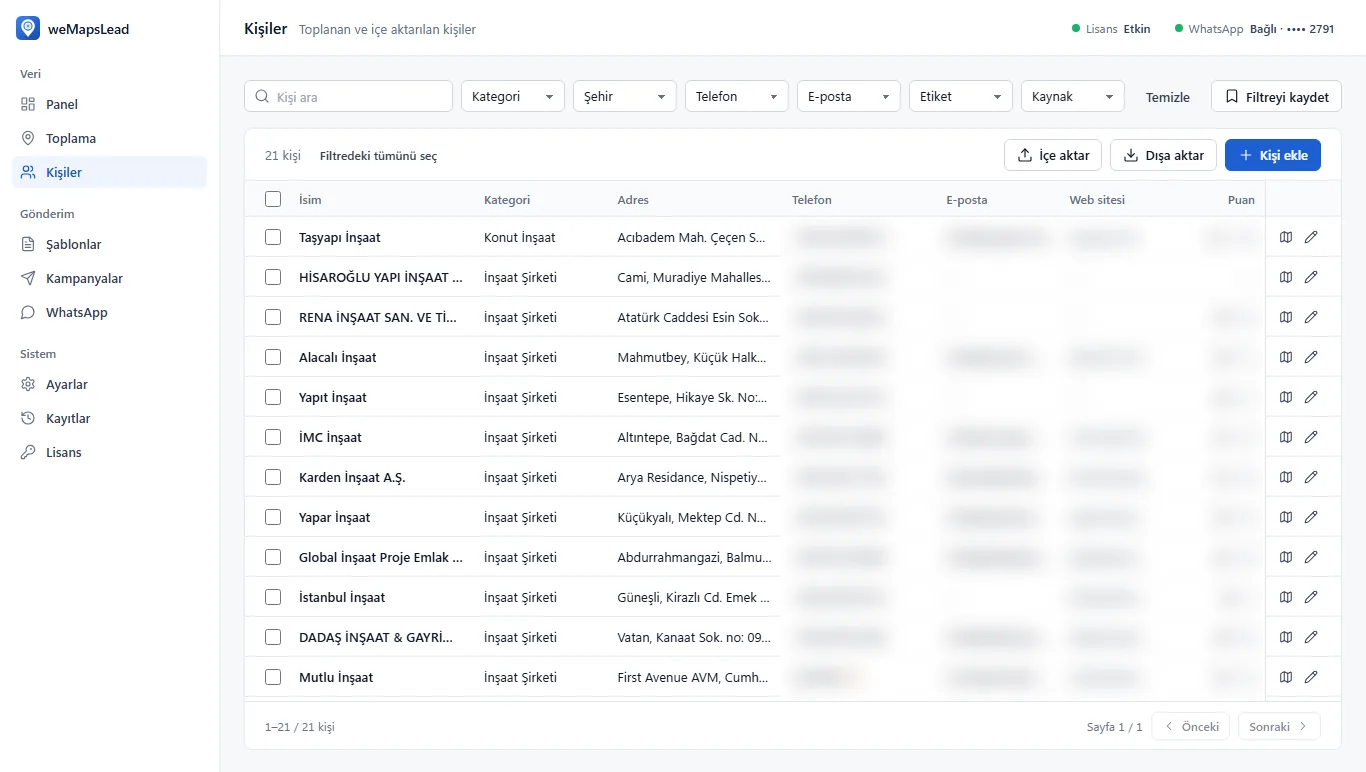
All collected and imported contacts are on the Kişiler (Contacts) page. Each page shows 50 records; use the controls at the bottom to move between pages.
Search and filters
In the Kişi ara (Search contacts) box at the top you can search by name, address, phone or email. The lists next to it narrow the results by:
- Category, city, tag and source (Google Maps, Places API, import, added manually)
- Phone: has phone / valid phone / no phone
- Email: has email / no email
Temizle (Clear) removes all filters. Filtreyi kaydet (Save filter) stores the current filter under a name. When a campaign starts, the contacts matching that filter are taken as they are at that moment.
Selecting contacts and bulk actions
Use the checkbox on the left of a row to select one contact, the checkbox in the header to select everyone on the page, or Filtredeki tümünü seç (Select all in filter) to select everyone matching the filter. Once you select contacts, these buttons appear:
- Etiket (Tag) adds or removes tags for the selected contacts. Separate several tags with commas.
- Kampanya oluştur (Create campaign) opens the Campaigns page with the selected contacts as recipients.
- Sil (Delete) deletes the selected contacts permanently. It asks for confirmation and cannot be undone.
- Seçimi temizle (Clear selection) clears the selection.
Adding and editing contacts
The Kişi ekle (Add contact) button or the pencil icon on a row opens a window. Fields: name (required), category, address, city / district, phone, email, website, tags and notes. If you tick "İletişimden çıktı · bu kişiye mesaj gönderilmez" (Opted out · no messages will be sent), campaigns skip this contact, and the table shows it with an "Çıkış" (Opted out) tag.
A warning icon appears next to an invalid phone number, and that record is skipped in WhatsApp sending. The map icon opens the business on Google Maps.
Import and export
İçe aktar (Import) uploads a CSV or Excel (.xlsx / .xls) file. The first row must be a header. Recognized columns: İsim, Kategori, Adres, Şehir, Telefon, E-posta, Web sitesi, Puan, Yorum sayısı, Harita URL, Etiketler; English equivalents (name, category, address, city, phone, email, website, rating, review count, map URL, tags) are accepted too. You can add a common tag to all rows. Contacts already in the list are not added again; at the end you see how many rows were new, updated or invalid.
Dışa aktar (Export) lets you choose the scope (selected, current filter or all) and the format (Excel or CSV) and download the file.
How do you create WhatsApp and email templates?
The WhatsApp and email texts used in campaigns are prepared on the Şablonlar (Templates) page. The template list is on the left, the editor on the right.
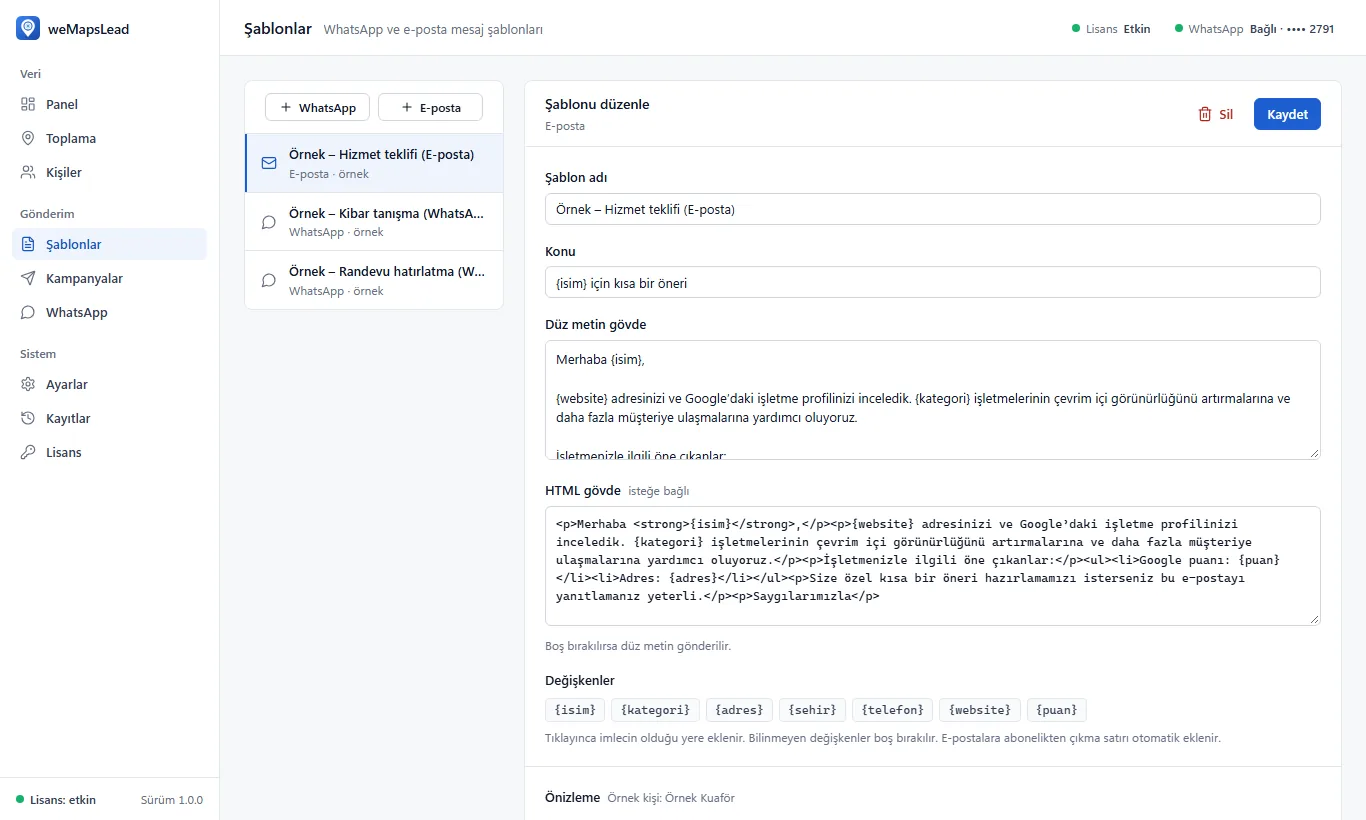
Create a new template with + WhatsApp or + E-posta (+ Email). Every template has a name. A WhatsApp template has only the message text. An email template also has a Konu (Subject), a plain-text body and an optional HTML body; if the HTML body is empty, plain text is sent. Kaydet (Save) stores the template; Sil (Delete) removes it after confirmation.
Variables
Variables insert contact details into the text. Clicking a variable inserts it at the cursor. Unknown variables are left empty.
| Variable | Replaced with |
|---|---|
{isim} | Business or contact name |
{kategori} | Category |
{adres} | Address |
{sehir} | City / district |
{telefon} | Phone |
{website} | Website |
{puan} | Google rating |
The Önizleme (Preview) at the bottom updates instantly using a fake contact called "Örnek Kuaför" (Sample Hairdresser). If an email template has no unsubscribe line, one is added automatically.
How do you connect WhatsApp to weMapsLead?
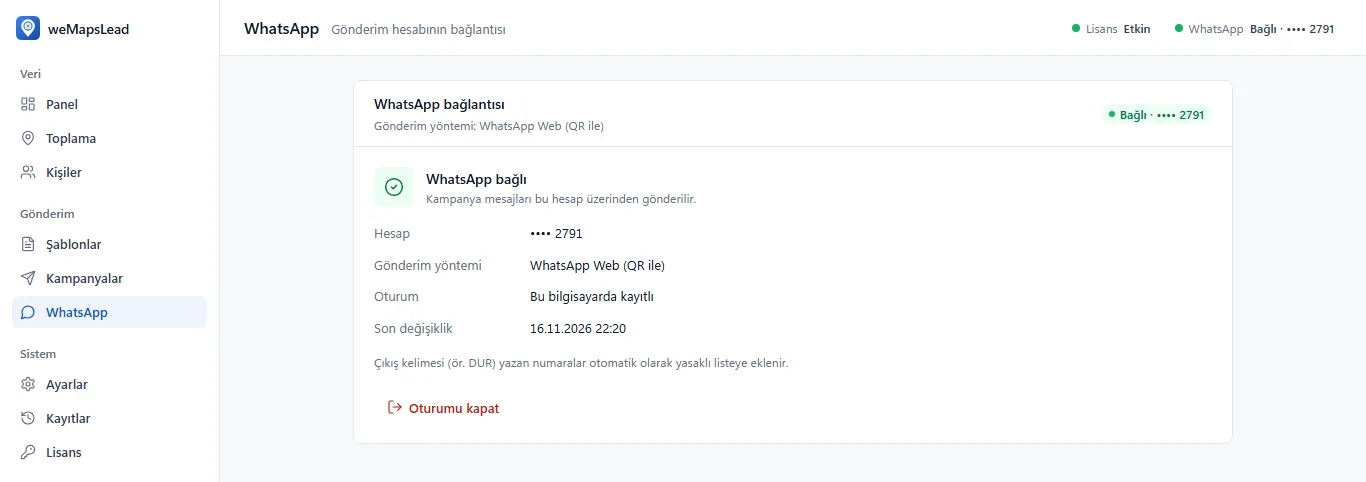
You link the account that will send campaign messages on the WhatsApp page. The default method is WhatsApp Web with a QR code.
Linking with a QR code
If no account is linked, the page shows these steps:
- Press QR oluştur (Generate QR); the code appears within a few seconds. The first time, the "WhatsApp Web başlatılıyor" (Starting WhatsApp Web) stage can take longer.
- On your business phone, open WhatsApp → Settings → Linked devices → Link a device.
- Scan the QR code. The session is saved on this computer, so you usually do not need to scan again on later launches.
If the connection drops while a session is saved on this computer, pressing Bağlan (Connect) is enough. If the session was closed from the phone, a new QR code is shown.
While linked, you see the account (masked number), the sending method and the note "Oturum bu bilgisayarda kayıtlı" (Session saved on this computer). Oturumu kapat (Log out) deletes the saved session; you need a new QR code to link again.
Numbers that reply with an opt-out word are added to the block list automatically. The default words are DUR, STOP, UNSUBSCRIBE and IPTAL; you can change them in Settings.
Cloud API (optional)
In Settings you can switch the sending method to Cloud API. No QR code is needed with this method; you enter the access token and phone number ID in Settings. Free-form text is delivered only if the contact has written to you in the last 24 hours; otherwise you need a template message approved in WhatsApp. For most users, WhatsApp Web with a QR code is enough.
How do you create a bulk messaging campaign?
Use the Kampanyalar (Campaigns) page to send your templates to selected contacts in bulk. The new campaign form is at the top and the list of existing campaigns below.
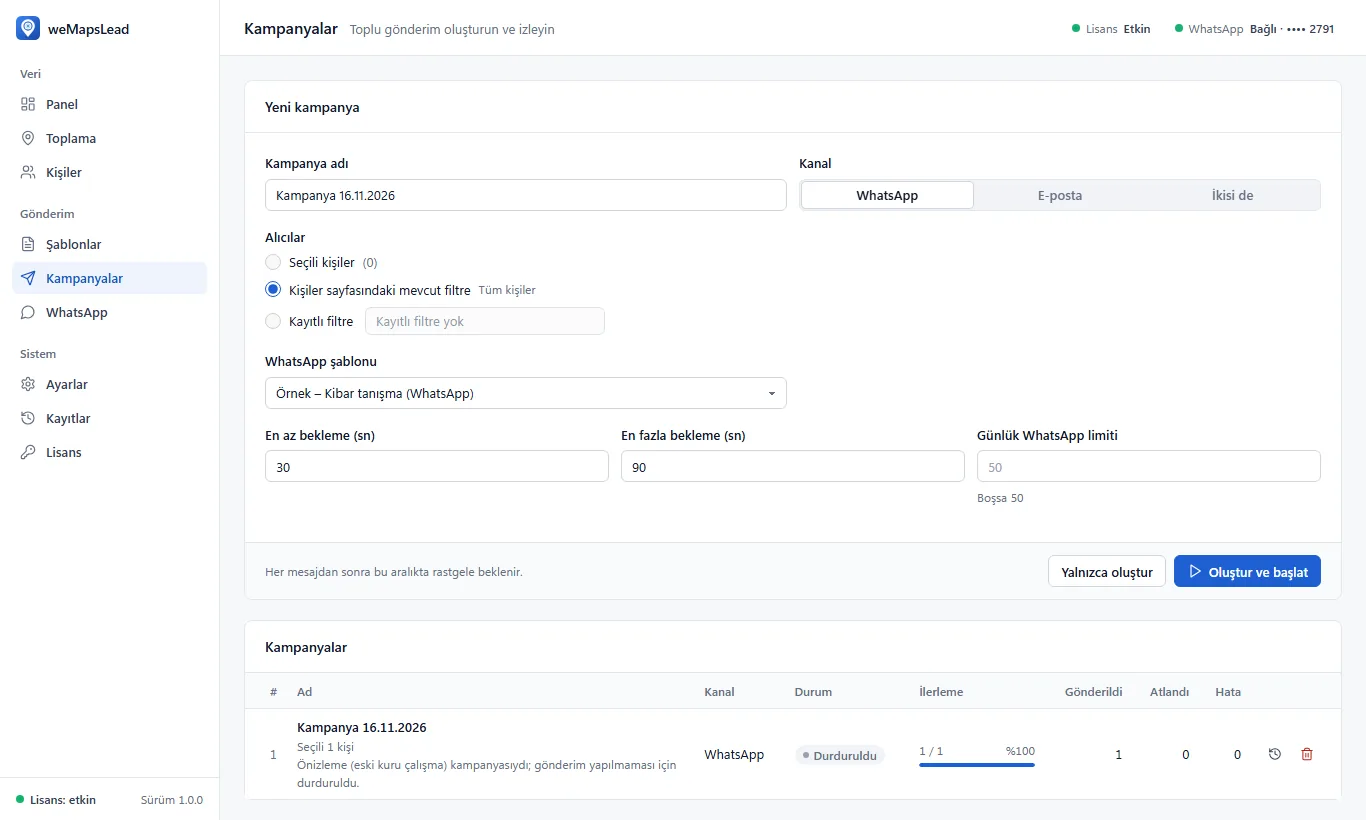
- Give it a Kampanya adı (Campaign name). The default name includes the current date.
- Choose the Kanal (Channel): WhatsApp, E-posta (Email) or İkisi de (Both).
- Choose the Alıcılar (Recipients) source: Seçili kişiler (Selected contacts, the ones you ticked on the Contacts page; disabled if nothing is selected), Kişiler sayfasındaki mevcut filtre (Current filter on the Contacts page, i.e. the current search and filters) or Kayıtlı filtre (Saved filter, one you saved earlier).
- Depending on the channel, choose a WhatsApp template, an email template or both.
- En az / en fazla bekleme (sn) (Min / max delay, sec) is the random wait after each real send. The default is 30–90 seconds.
- If Günlük WhatsApp / e-posta limiti (Daily WhatsApp / email limit) is left empty, the value from Settings is used (default 50). When the limit is reached, the campaign pauses; you can resume the next day or raise the limit. Limits count successful sends only, and the day follows Istanbul time.
- Press Oluştur ve başlat (Create and start) to start right away, or Yalnızca oluştur (Create only) to save it as a draft.
If WhatsApp is selected but no account is linked, you get the warning "WhatsApp bağlı değil; kampanya başlatılamaz." (WhatsApp is not connected; the campaign cannot start.). If email is selected and SMTP is not configured, a similar warning appears.
Who does a campaign skip?
A campaign skips these contacts; in the logs they show as "Atlandı" (Skipped) or "Yasaklı" (Blocked):
- Contacts marked "İletişimden çıktı" (Opted out)
- For WhatsApp, contacts with no phone number or an invalid one
- For email, contacts with no email address
- Numbers and email addresses on the block list
Managing a campaign
The list shows name, channel, status, progress and the sent, skipped and error counts. The buttons change with the campaign's status:
| Action | When it appears | Effect |
|---|---|---|
| Başlat (Start) | Draft | Starts sending. |
| Duraklat (Pause) | Running | Stops temporarily; continue later with Devam et (Resume). |
| Devam et (Resume) | Paused | Continues from where it stopped. |
| Durdur (Stop) | Running, paused or draft | All remaining recipients are skipped. This cannot be undone. |
| Gönderim kayıtları (Send logs) | Always | Opens the Logs page filtered to this campaign. |
| Sil (Delete) | When not running | Deletes the campaign; its send logs are kept. |
What does a typical weMapsLead workflow look like?
Daily use usually follows the order below. On the first day, test with a few contacts instead of messaging the whole list; that way you can safely check the text, the numbers and the WhatsApp connection.
- On the Collection page, start a small search by keyword and location (e.g. 20 results) and wait for it to finish.
- Review the results in the Contacts list. Delete wrong or unneeded records, add tags and filter for contacts with a phone number or email. Save the filter if you like.
- On the Templates page, write a short, personal and accurate message. Check the preview with variables such as
{isim}and{sehir}. - On the WhatsApp page, make sure the account is linked. If you will send email, save SMTP in Settings and test the connection.
- On the Campaigns page, choose the recipients and the template. Use a low daily limit and enough delay on your first run, then press Oluştur ve başlat (Create and start).
- Track sent, skipped and failed messages on the Logs and Panel pages. Anyone who replies with an opt-out word lands on the block list and is not messaged again.
Where can you see the send logs?
Every send attempt appears on the Kayıtlar (Logs) page: time, channel (WhatsApp Web, Cloud API or email), contact, recipient, template, status, message and any error.
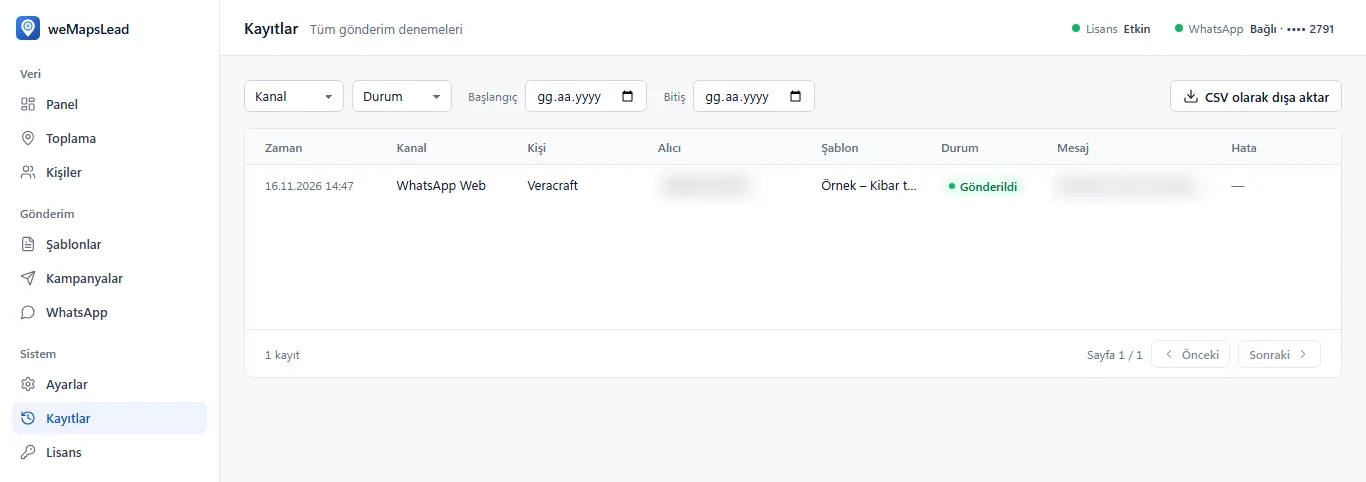
At the top you can filter by channel (WhatsApp / email), status (Gönderildi / Sent, Başarısız / Failed, Atlandı / Skipped, Yasaklı / Blocked) and date range. If you came from the log icon on the Campaigns page, a "Kampanya #…" (Campaign #…) tag appears; click its × to remove that filter.
Click the arrow in a message cell to see the full text. CSV olarak dışa aktar (Export as CSV) downloads the records that match the current filter. Each page shows 100 records.
How do you configure weMapsLead settings?
Email sending, speed and limits, the optional Places API, the WhatsApp method and the block list are on the Ayarlar (Settings) page. Changes take effect when you press Ayarları kaydet (Save settings).
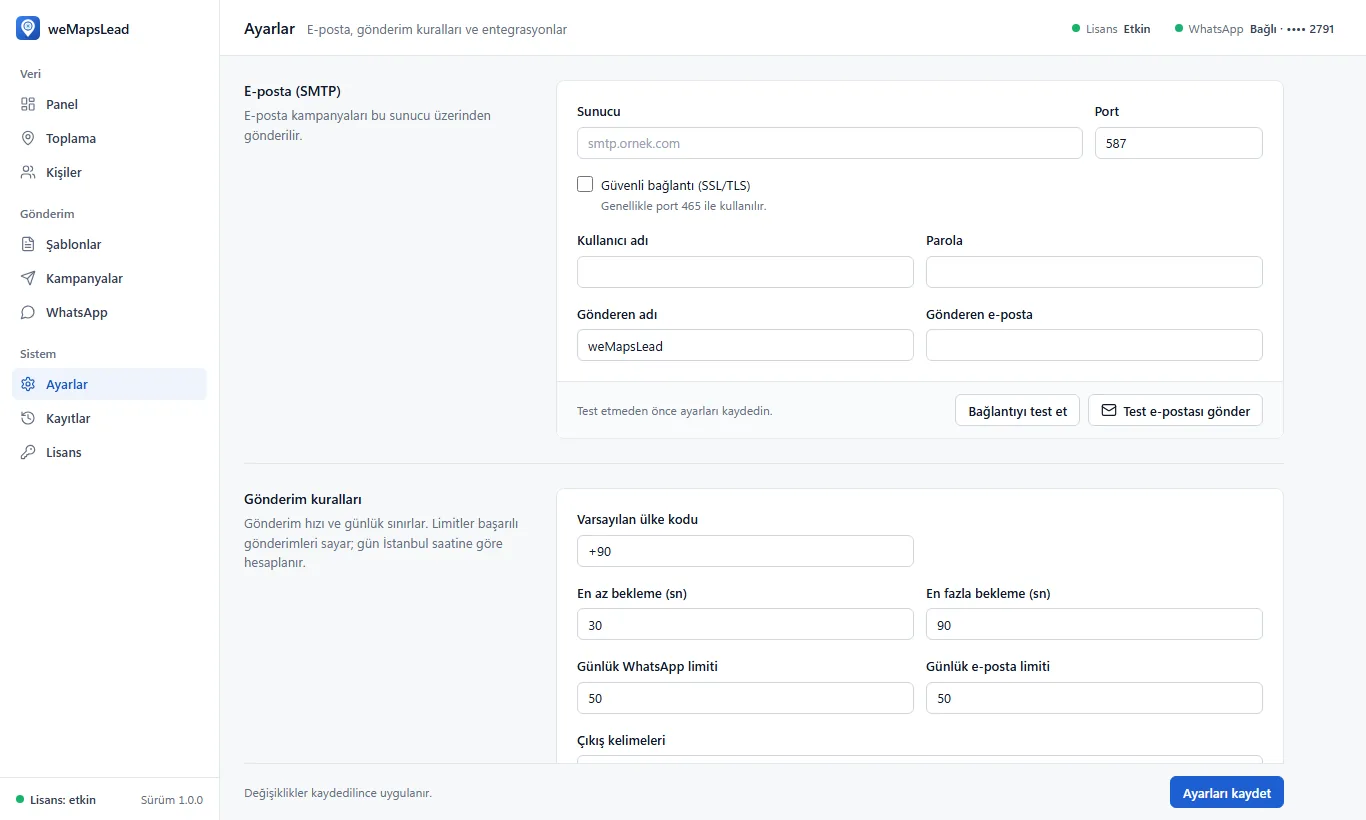
Email (SMTP)
Email campaigns are sent through the server you enter here. Fill in the server, port, username, password, sender name and sender email. The default port is 587; the optional Güvenli bağlantı (SSL/TLS) (Secure connection) setting is usually used with port 465. Once the password is saved, the field shows "Kayıtlı" (Saved). To change it, type a new value, or tick "Kayıtlı değeri sil" (Delete saved value).
Save the settings before testing. Bağlantıyı test et (Test connection) tries to connect to the server. Test e-postası gönder (Send test email) asks for an address and a confirmation tick, then sends a real message.
Sending rules
| Setting | Default | Description |
|---|---|---|
| Varsayılan ülke kodu (Default country code) | +90 | Phone numbers without a country code are completed with this code. |
| En az / en fazla bekleme (Min / max delay) | 30 / 90 sec | Default delays for campaigns. They can be changed in the campaign form. |
| Günlük WhatsApp / e-posta limiti (Daily WhatsApp / email limit) | 50 / 50 | Counts successful sends; the day follows Istanbul time. |
| Çıkış kelimeleri (Opt-out words) | DUR, STOP, UNSUBSCRIBE, IPTAL | Comma-separated. A number that replies with one of these words is added to the block list. |
If your contacts are outside Turkey, change the default country code and add opt-out words in their language.
Google Places API
Optional. If you enter a key, the "Places API" method becomes available on the Collection page. You create the key in Google Cloud Console after enabling the Places API.
WhatsApp sending method
Choose WhatsApp Web (QR) or Cloud API. With Cloud API selected, fields appear for the access token, phone number ID and Graph API version (e.g. v21.0). With the QR method, linking is done on the WhatsApp page.
Block list
Numbers and email addresses on this list are never messaged. Enter one value per line (or separate them with commas) and press Listeye ekle (Add to list). You can also import the list from a .txt or .csv file.
Where do you check the weMapsLead license and updates?
The Lisans (License) page shows your license status and updates side by side.
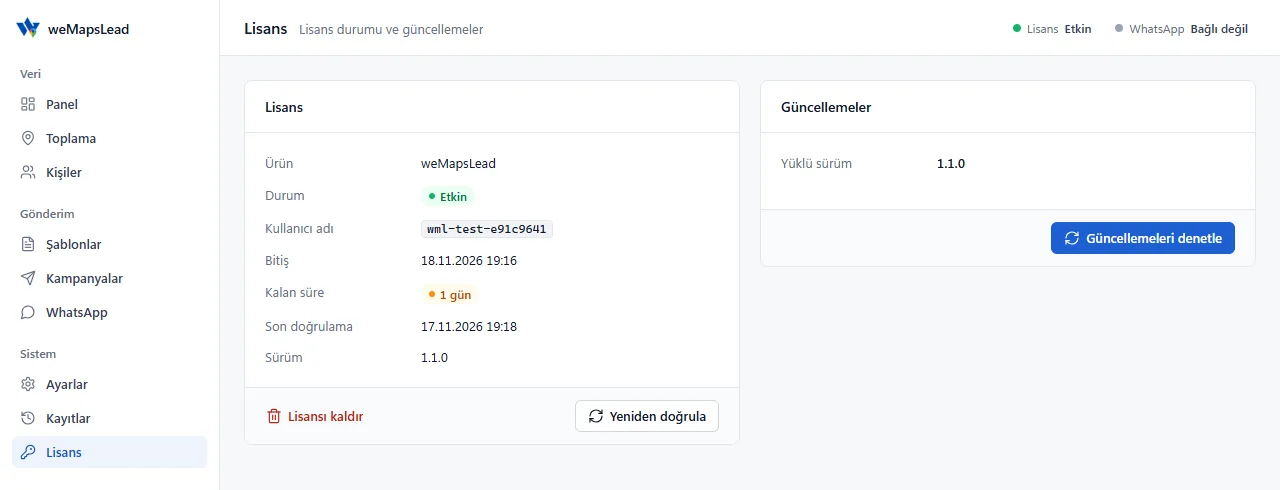
The card on the left shows the product name, status (Etkin / Active, Kilitli / Locked, Süresi doldu / Expired and so on), username (the password is never shown), expiry date, days left, last verification and installed version. When little time is left, the remaining time is shown in a warning color.
- Yeniden doğrula (Verify again) checks the license immediately. If it is not valid, the app locks.
- Lisansı kaldır (Remove license) deletes the license sign-in on this device and locks the app. You can then sign in with the same or a different username and password. Your contacts and other data are not deleted; the confirmation window states this clearly.
Updates
The app checks for a new version when it starts. You can run the same check with Güncellemeleri denetle (Check for updates) on the License page. If you are up to date, you see "En güncel sürümü kullanıyorsunuz" (You are using the latest version) with the version number.
If a new version exists, it is shown with its release notes. İndir, doğrula ve uygula (Download, verify and apply) downloads, verifies and applies the package; the app then restarts by itself, so you do not need to close and reopen the window. If the update cannot be applied (for example when a new installer is required), read the message on screen and contact WeSoftware support if needed.
How do you fix common weMapsLead problems?
The installer will not run or Windows shows a warning
Try More info → Run anyway. If Smart App Control is on, unsigned programs may be blocked. Antivirus software sometimes quarantines the installer; add the file to the allowed list and try again.
Sign-in is not accepted
Type the username and password exactly as in your order, with no spaces. Make sure Caps Lock is off. After many failed attempts, wait a little and try again. If the license is bound to another computer, contact support; the license stays on the device where it was first activated.
My license expired. Will I get a new password?
No. Renewal extends the same license. Sign in with the same username and password, or press Yeniden doğrula (Verify again) on the License page.
The app will not open without internet
The app can be used offline for 7 days after the last successful check. If that period has ended too, connect to the internet and try again.
Collection does not start or takes very long
Check your internet connection. If the browser is still downloading on first launch, wait for the notice at the top to disappear. Keep Maks. sonuç (Max. results) low; with Web sitelerinden e-posta bul (Find emails on websites) turned on, the job takes longer. A second collection cannot start while one is running, so stop the current job or wait for it to finish.
The WhatsApp QR code does not appear or will not connect
Wait a few seconds; the first start can take about a minute. Make sure the clock is correct on both the phone and the computer. Keep WhatsApp on the phone up to date and use "Link a device". If the saved session is broken, press Oturumu kapat (Log out) and generate a new QR code. If the browser could not be downloaded, use Tekrar dene (Try again) at the top.
The campaign does not start
A WhatsApp campaign needs a linked account. An email campaign needs SMTP saved and verified with Bağlantıyı test et (Test connection). Check that a suitable template is selected and that the recipient source actually contains contacts.
Some contacts did not get the message
Look at that contact's row on the Logs page. Common reasons: no phone or an invalid one, no email, the contact opted out, the number or address is on the block list, or the daily limit was reached. If the limit was reached, the campaign pauses; pressing Devam et (Resume) the next day or raising the limit is enough.
Where is my data, and what happens if I change computers?
Your data is on this computer, in the %LOCALAPPDATA%\weMapsLead folder. The license is also bound to the first device. To move to a new computer, talk to support; installing the program on the new machine is not enough on its own.
I have an older install called MapsLeads
The weMapsLead installer finds the old app, closes it and uninstalls it without touching your contacts. On first launch the old data folder is copied into the new weMapsLead folder. The old folder stays as a backup; once you see everything is in place, you can delete it manually.
How do you contact weMapsLead support?
If you get stuck, write to the WeSoftware support team. To speed things up, include the version number (on the License page or at the bottom of the sidebar), a short description of the problem and a screenshot if possible. Never share your password over chat or email.
| Channel | Address |
|---|---|
| Telegram | https://t.me/we1town |
| Web | https://wesoftware.io |
For features and system requirements, see the weMapsLead product page.
Last updated: 18 November 2026 (version 1.1.0)