
Sign in
weMailAutomation is the Windows app you use to farm existing Gmail accounts, check status, export cookies, change passwords, and reactivate accounts via SMS. After downloading from the customer panel, open the app.
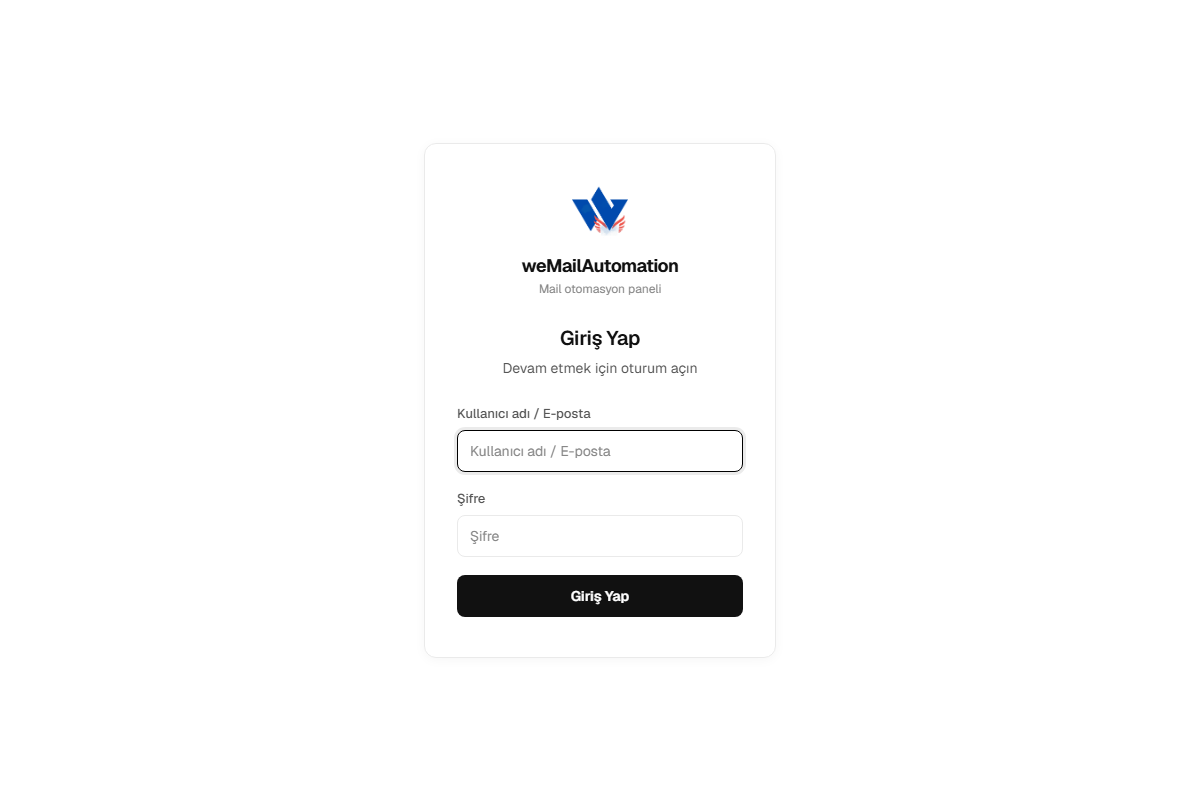
- Enter Username / Email and Password from your customer panel license details.
- Click Sign in (Giriş Yap).
- Switch language with TR / EN at the bottom left.
General Settings
General Settings is where you pick the main operation and farm scenario. After configuring, use Run (Çalıştır) in the top right; Restart (Yeniden Başlat) reloads the script.
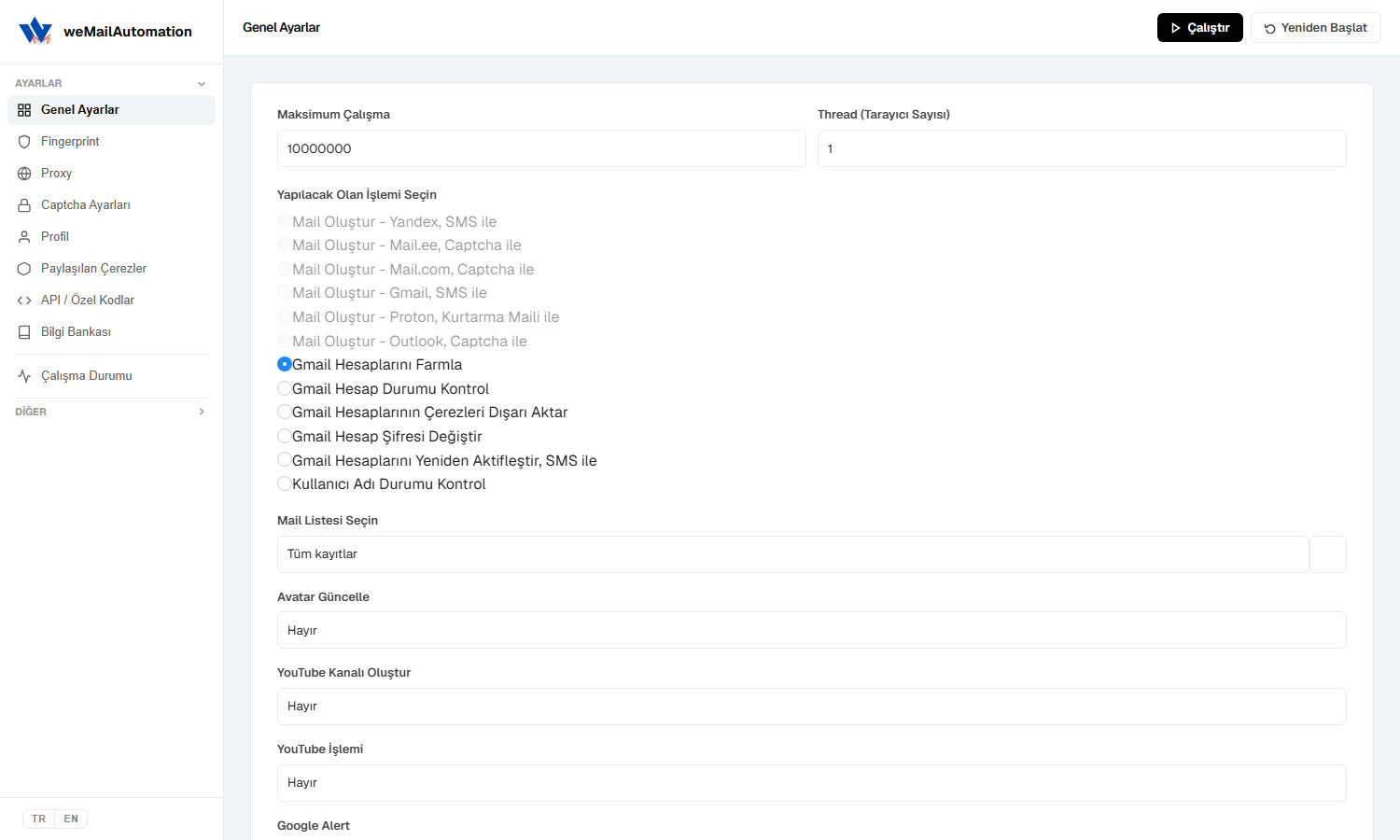
- Max Run: Upper limit for how many operations to perform.
- Threads (browser count): Concurrent browsers/workers. Raise with available CPU/RAM; higher values use more resources.
- Select the Operation to Perform — active options include:
- Farm Gmail Accounts — YouTube, Alert, Drive, send mail, random search, and related farm steps
- Check Status for Gmail Accounts
- Export Cookies with Gmail Accounts
- Change Password for Gmail Accounts
- Reactivate Gmail Accounts, with SMS
- Check Username Status
- Create-mail options (Yandex, Mail.ee, Mail.com, Gmail, Proton, Outlook) may appear enabled or disabled depending on license/version.
- Select Mail List: Account group from the database (e.g. All records). Add accounts under Database first.
- Update Avatar / Create YouTube Channel / YouTube Action / Google Alert / Google Drive / Send Email / Random Search Google and similar fields appear when farming is selected; use Yes/No or list paths to extend the scenario.
Fingerprint
Configure browser fingerprinting and weBrowser version here.
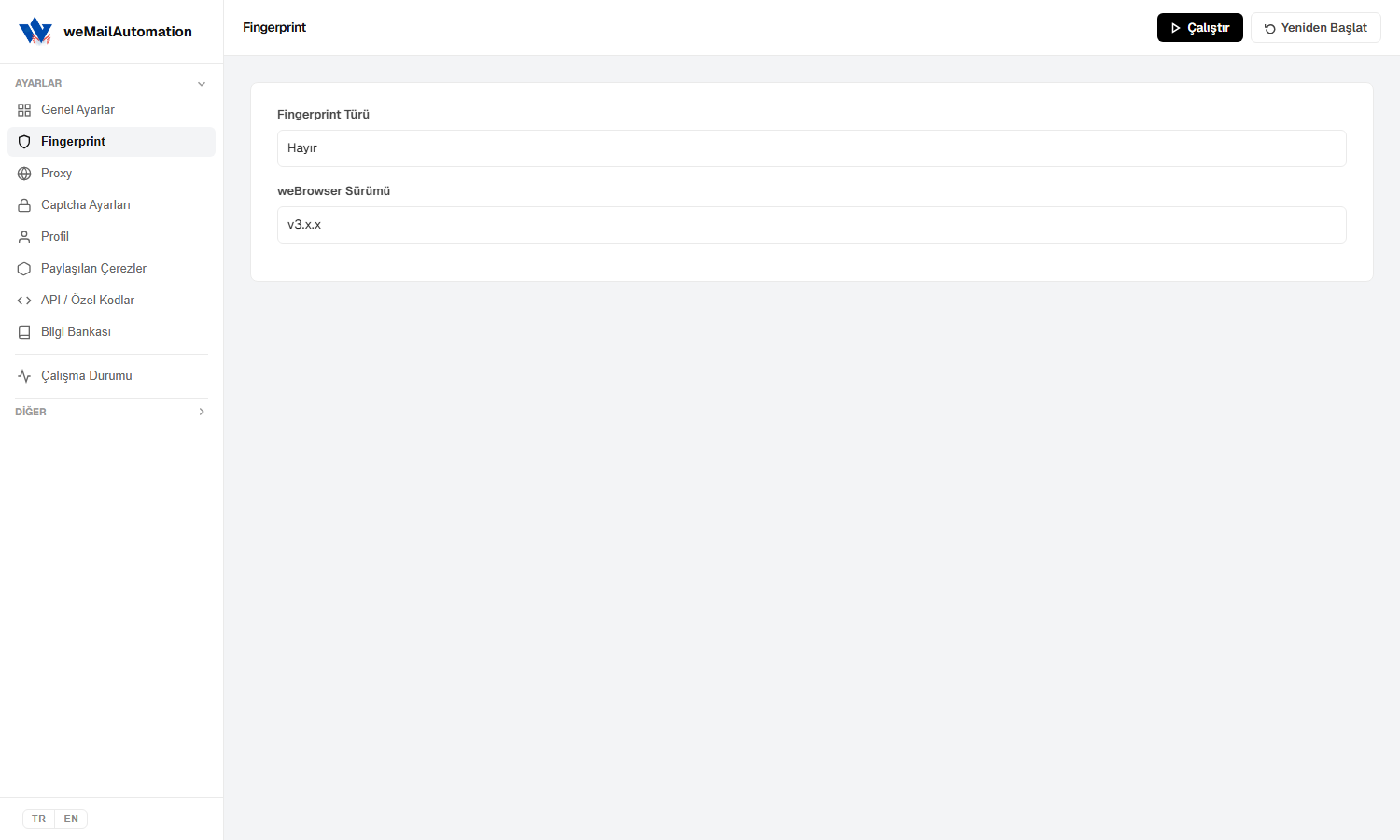
- Fingerprint Type: No, FingerprintSwitcher API Key, WE1 Fingerprint API Key, or Files.
- Fill the matching API key field when required.
- weBrowser Version: e.g.
v3.x.x— use a version compatible with your build.
Proxy
Manage IPs here. Running without a proxy is possible, but proxies are recommended for farming and account work.
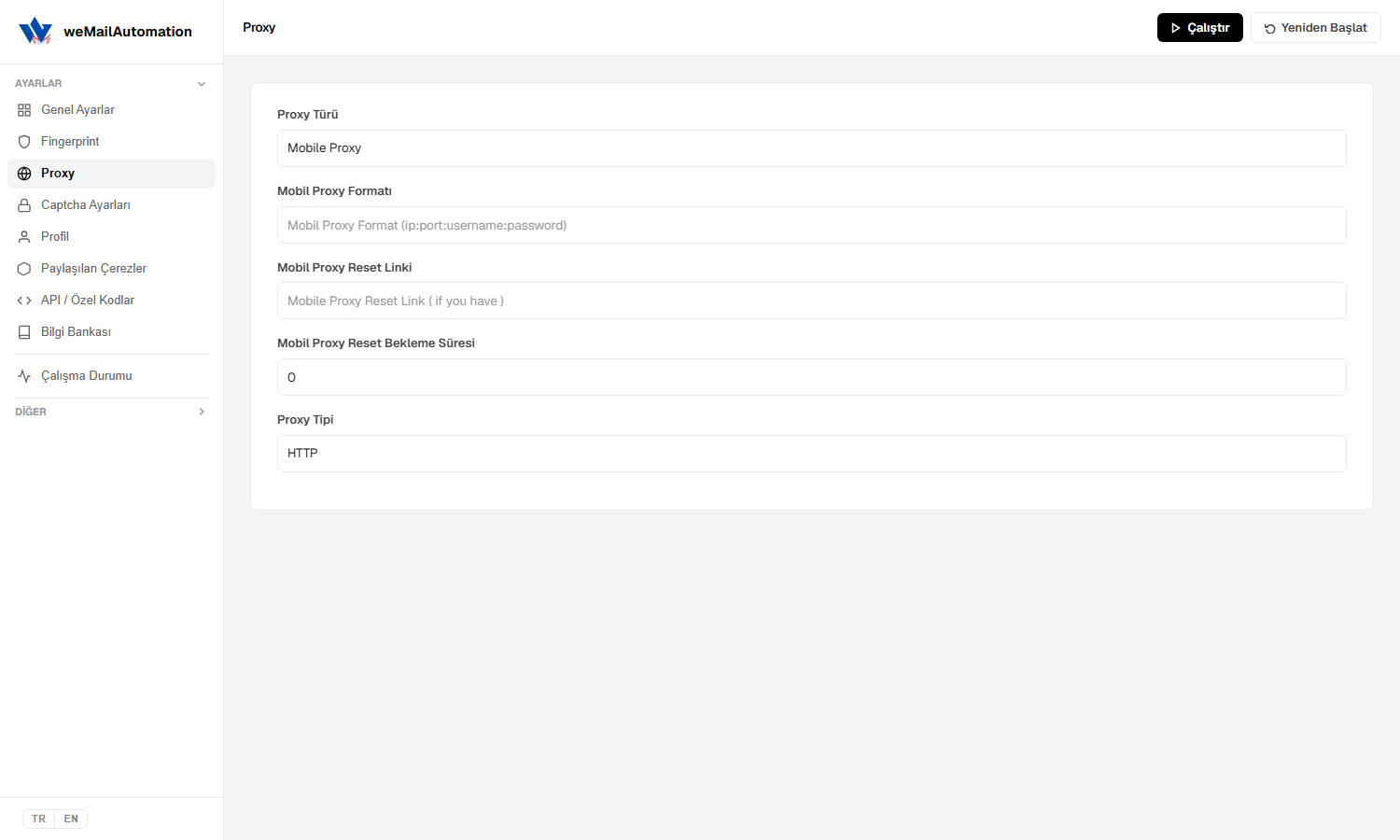
- Proxy type: Mobile Proxy, Multi Mobile Proxy, Mobile Data, Rotating Proxy, Other, I dont use proxy, Use in Database.
- Mobile proxy format:
ip:port:username:password - Mobile proxy reset link: optional IP refresh URL.
- Mobile proxy reset wait: seconds to wait after reset.
- Proxy protocol: HTTP / SOCKS, etc.
Captcha Settings
Pick a captcha solver service and API key.
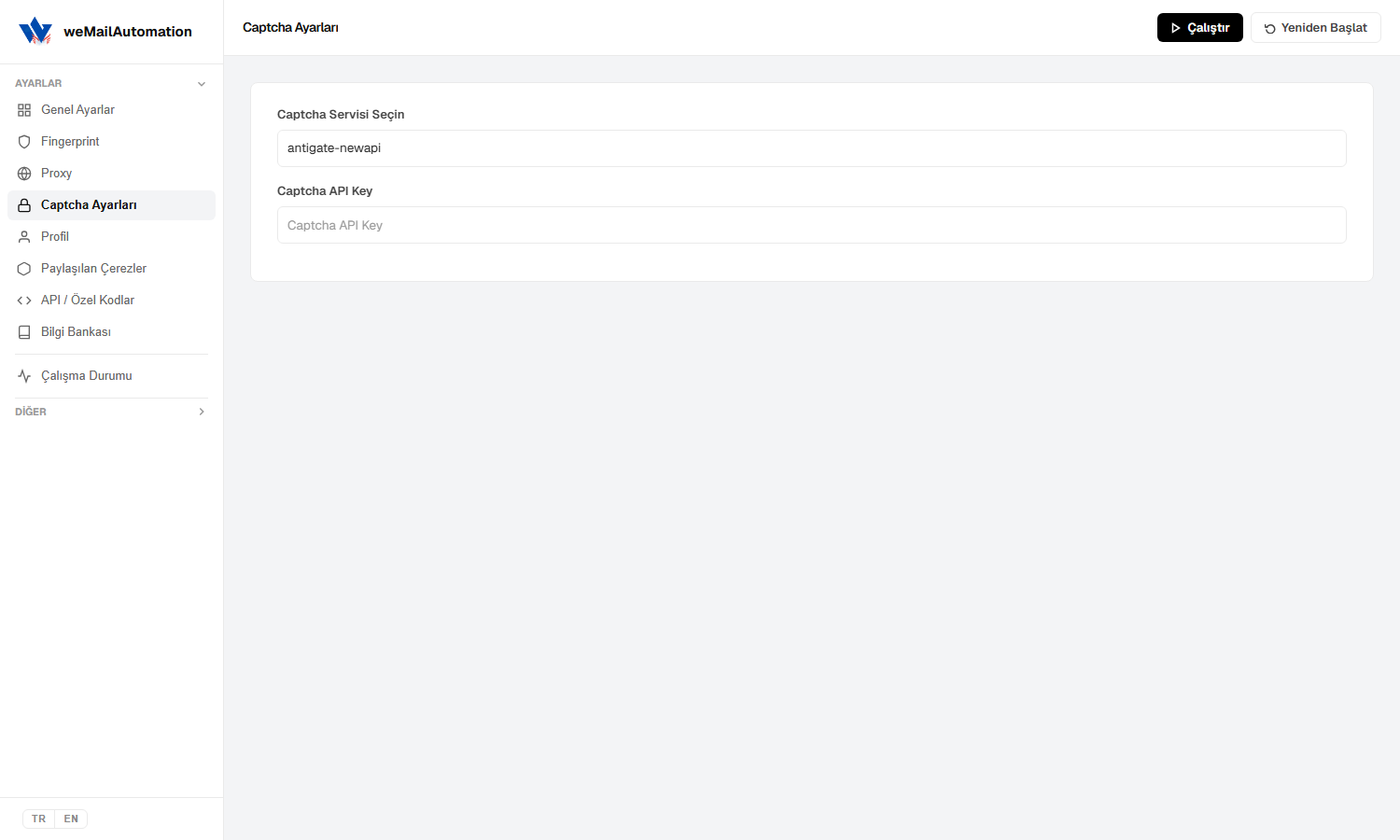
- Select Captcha Service: antigate-newapi, 2captcha-newapi, rucaptcha-newapi.
- Captcha API Key: key from your provider.
- Captcha providers are third-party; pricing and availability depend on them.
Profile
Persistent browser profile (cookie/session folder) settings.
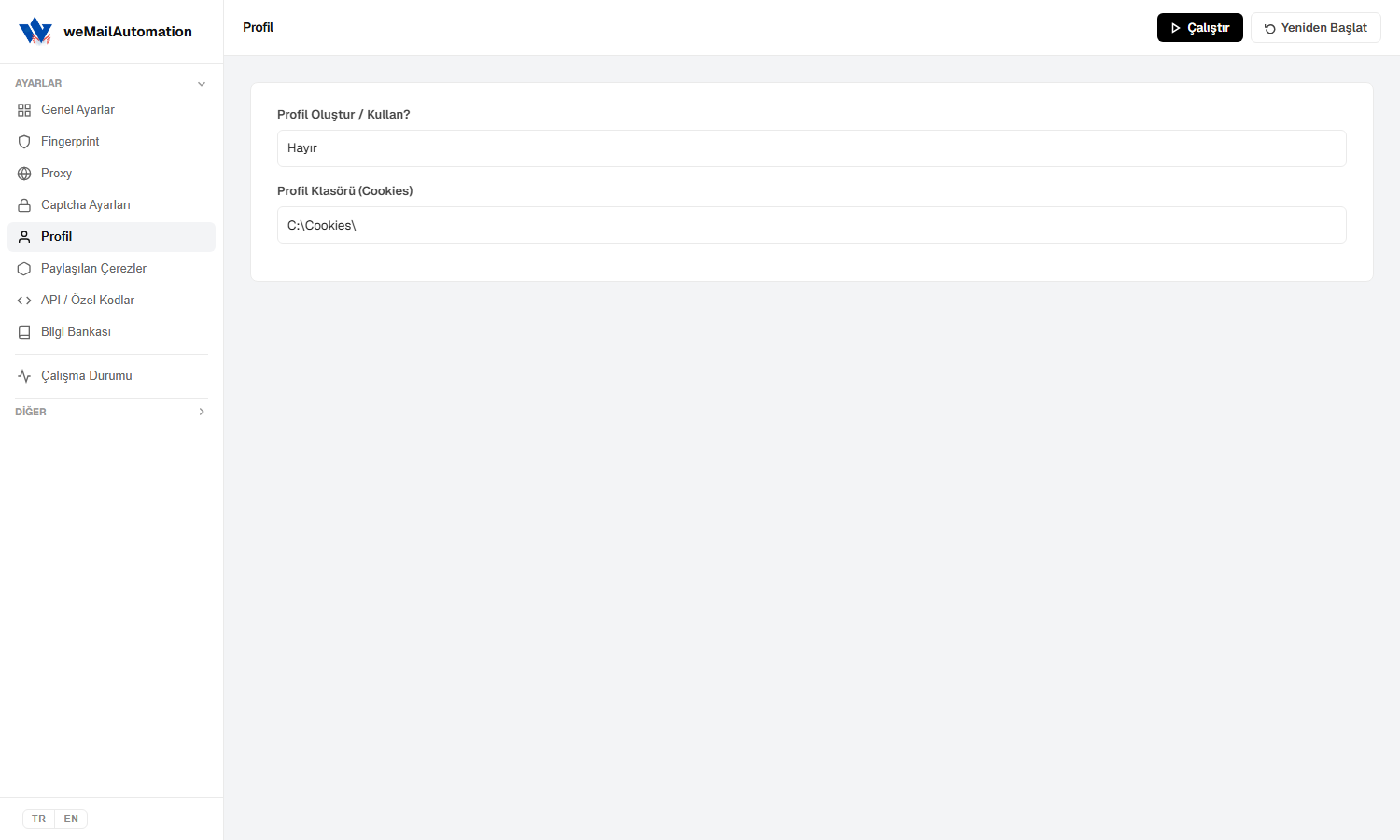
- Create / Use Profile?: Yes stores and reuses profiles; No disables profile mode.
- Profile Folder (Cookies): path such as
C:\Cookies\. You can align this with weGetCookies / other WE apps.
Shared Cookies
For warmed or externally supplied shared cookies.
- Define the shared cookie source/path here.
- If your farm scenario needs warmed sessions, configure this to match General Settings.
API / Custom Codes
Only if you were given a custom feature or API code.
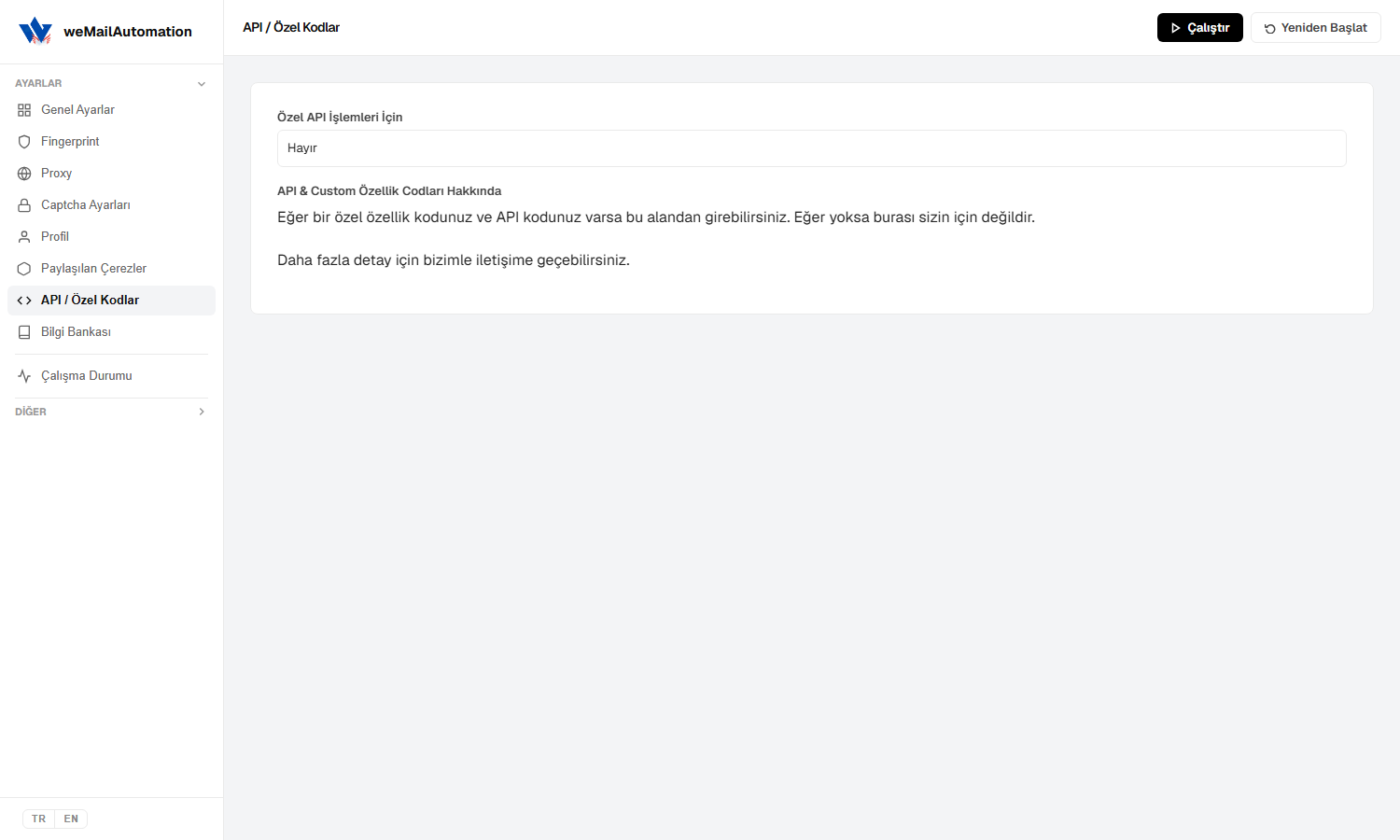
- Leave empty or No if you do not have a code.
- Otherwise enter it here; contact support for details.
Knowledge Base (in-app)
Shortcuts to this guide and the full knowledge base, plus error reporting.
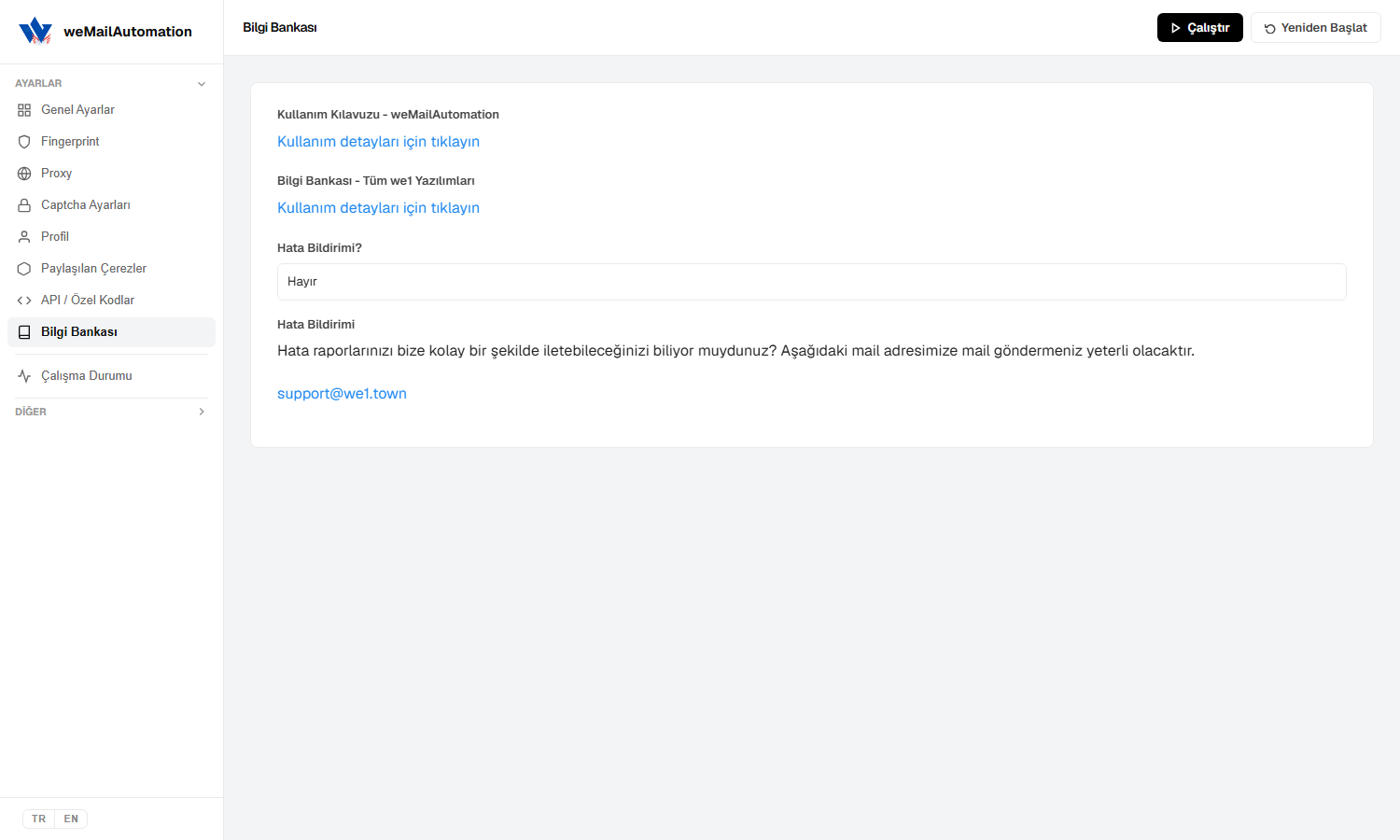
- Usage Guide - weMailAutomation: opens this guide.
- Knowledge Base - All we1 Software: main knowledge base hub.
- Error reporting: email [email protected] or use the customer panel.
Operating Status
Live dashboard: threads, success/fail, active browsers, stats, and logs.
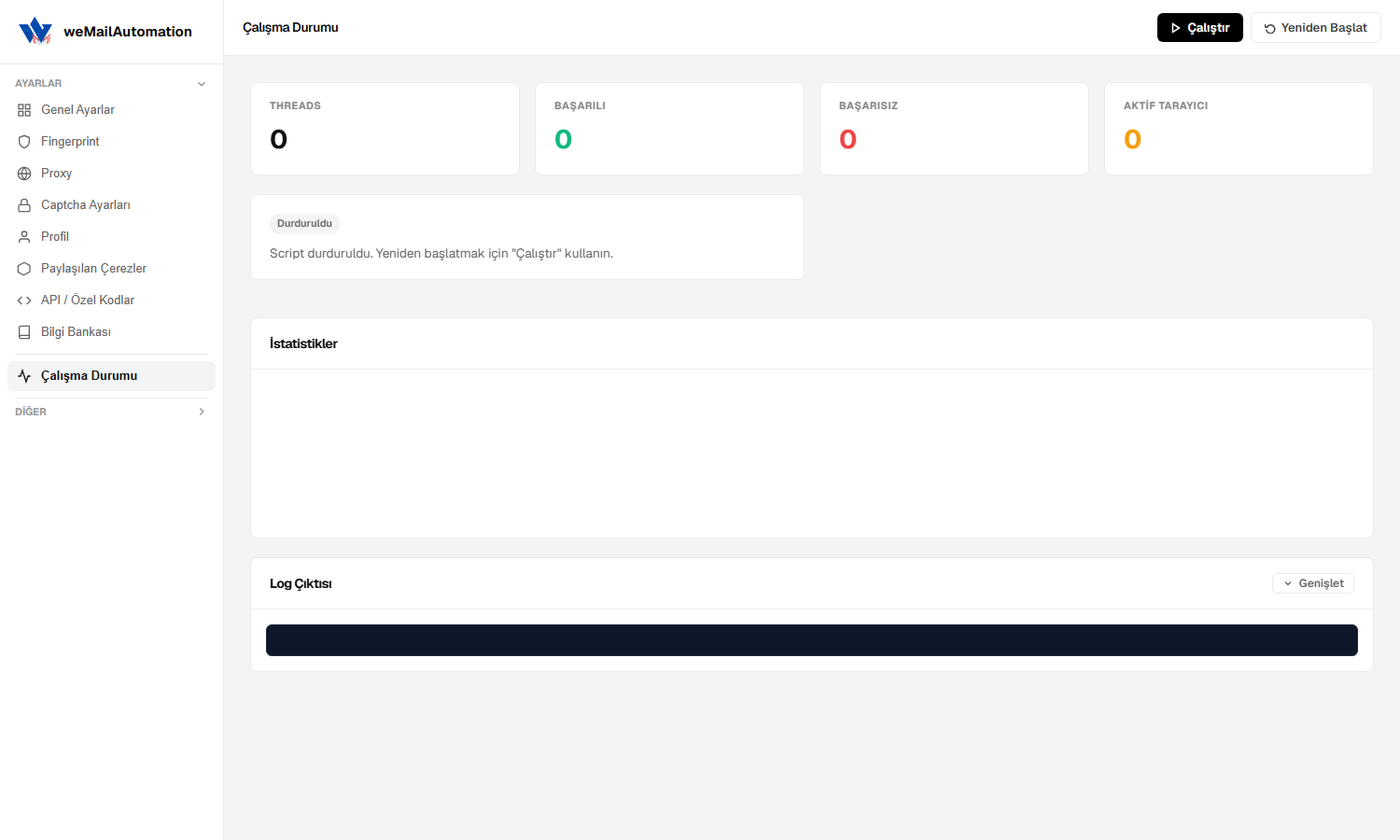
- THREADS / SUCCESS / FAIL / ACTIVE BROWSER: live metrics.
- Status badge (e.g. Stopped) shows script state; use Run to start again.
- Statistics: charts/summary while running.
- Log Output: step-by-step console; use Expand if needed.
Database
Under Other → Database (folder icon) you manage account tables.
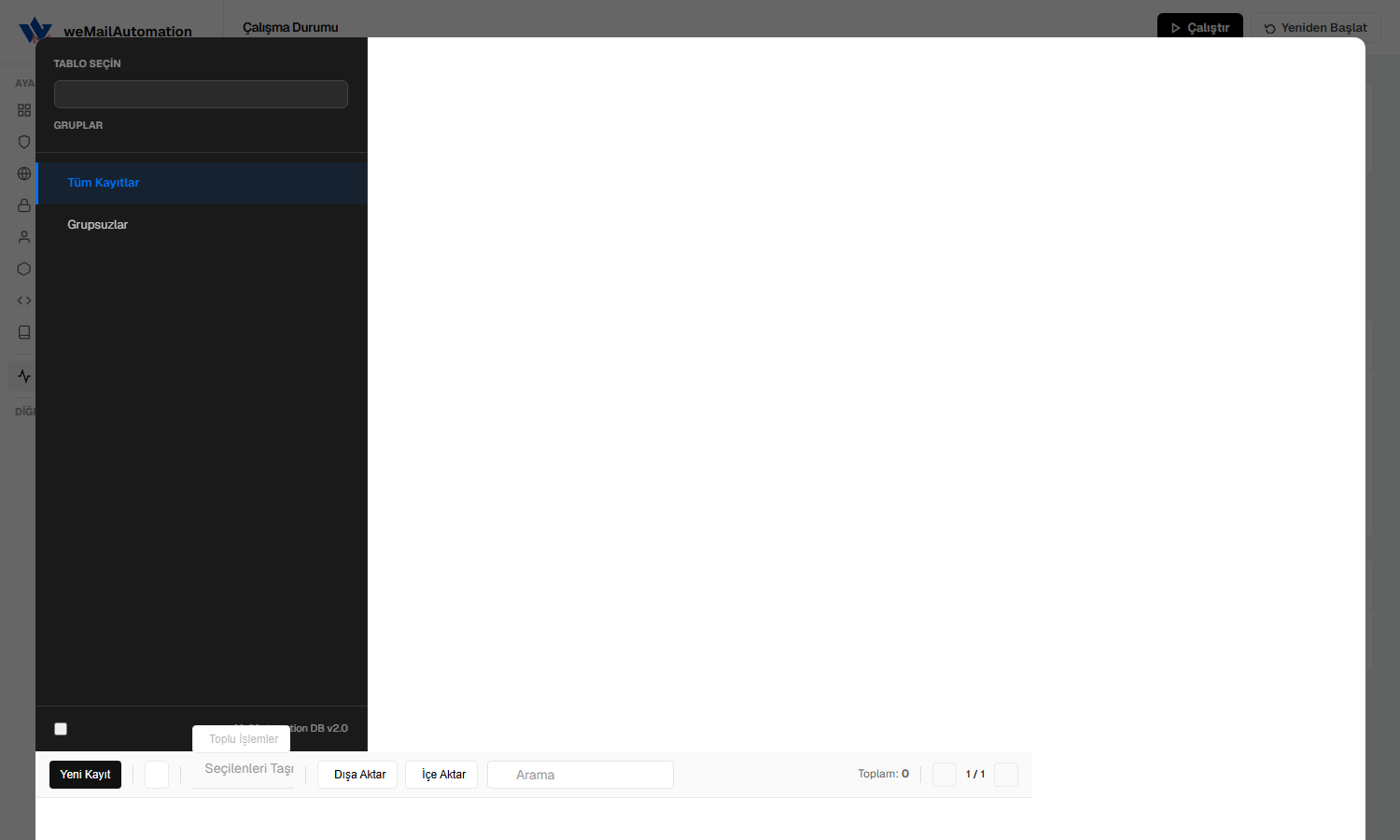
- Select table / Groups: account tables and groups (All records, Ungrouped, etc.).
- New Record: add accounts.
- Bulk Actions: e.g. move selected.
- Export / Import: backup and restore table data.
- Search and pagination filter records.
- The Mail List in General Settings reads from these groups.
Recommended quick start
- Add or import Gmail accounts in Database.
- Configure Proxy and optional Fingerprint / Captcha.
- In General Settings pick an operation (e.g. Farm Gmail Accounts), mail list, and farm options.
- Click Run and watch logs on Operating Status.
Frequently asked
Why are create-mail options disabled?
Some create scenarios may be inactive depending on license or version. Continue with active Gmail farm and management ops; download the latest build from the customer panel.
How high should I set Threads?
Start at 1 and raise with CPU/RAM and proxy capacity. Too many threads can increase proxy and captcha failures.
Where do accounts come from?
Database groups. Mail List in General Settings processes the selected group.
What if automatic update fails?
Download the latest installer from the customer panel and reinstall. If it persists, email [email protected].