
What is weSeo Panel?
weSeo Web Panel is the Bot Management Panel that lets you manage your weSeo bot operations from a single control center. You no longer need to log into your servers constantly for multiple devices; you can control all servers from one place — from phone, tablet, or computer. Connect bot machines to the panel, define weSeo tasks, organize proxy and cookie resources, and monitor everything live.
Core workflow:
Sign in to weSeo Panel → Add machine → Prepare proxy/cookies → Create task → Bot runs → Monitor from panel
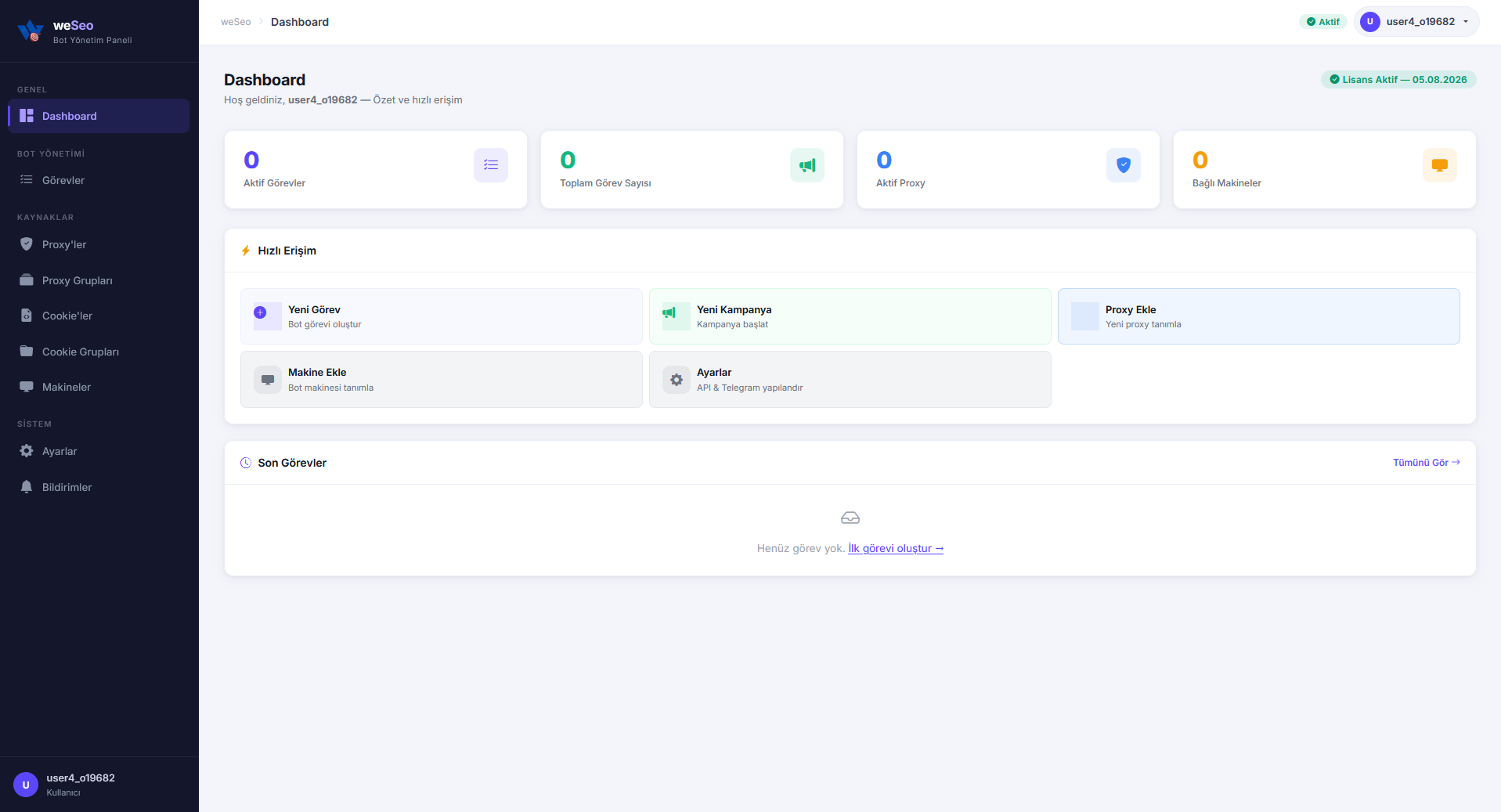
weSeo Web Panel sign-in steps
1. Sign in to your customer panel and open your weSeo Web Panel order detail page.
2. Sign in with the username and password provided to you.
License status
After signing in, you see your license badge in the top bar:
| Badge | Meaning |
|---|---|
| Active | Your license is valid; expiry date is shown on the badge |
| Unlimited | Unlimited license; no expiry date |
| (Login denied) | License expired — "Your license has expired" page is shown |
When your license expires, you cannot access the panel. Contact support or renew from your customer panel.
If your account was disabled by an administrator, login is denied and you see "Your account has been disabled".
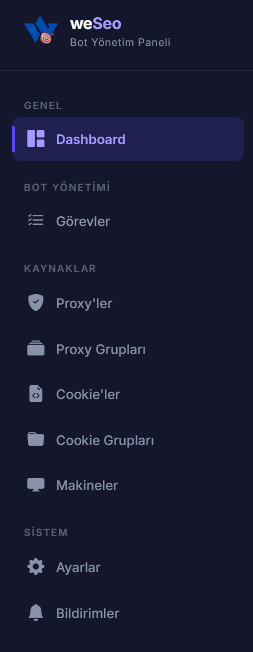
Panel menu
Menu sections you can access with a customer account:
| Menu | Description |
|---|---|
| Dashboard | Summary stats, quick access cards, recent tasks |
| Tasks | Create, edit, filter, and monitor bot tasks |
| Proxies | Add proxies individually, bulk import, status management |
| Proxy Groups | Group proxies — for selecting groups in tasks |
| Cookies | Upload and list cookie files |
| Cookie Groups | Group cookie files |
| Machines | Define bot computers, token management |
| Settings | API key and Telegram notification configuration |
| Notifications | Telegram integration status and test |
Initial setup checklist
If you are signing in to the panel for the first time with a new account, follow this order:
☐ 1. Add a bot machine and save the API token
☐ 2. weSeo yazılımı açıp bot makinesi için oluşturulan API key bilgisini yazılımda ilgili alana girin ( aşağıda ekran görüntüsü ile gösterilmiştir )
☐ 3. Eğer kullanılacak ise* Proxy grubu oluşturup proxy'lerinizi ekleyin
☐ 3. If needed*: Create a cookie group and upload your cookie files
☐ 4. İsteğe bağlı* Settings sayfasından Telegram notificationsni yapılandırın
☐ 5. Create your first task and verify your bot machine is online
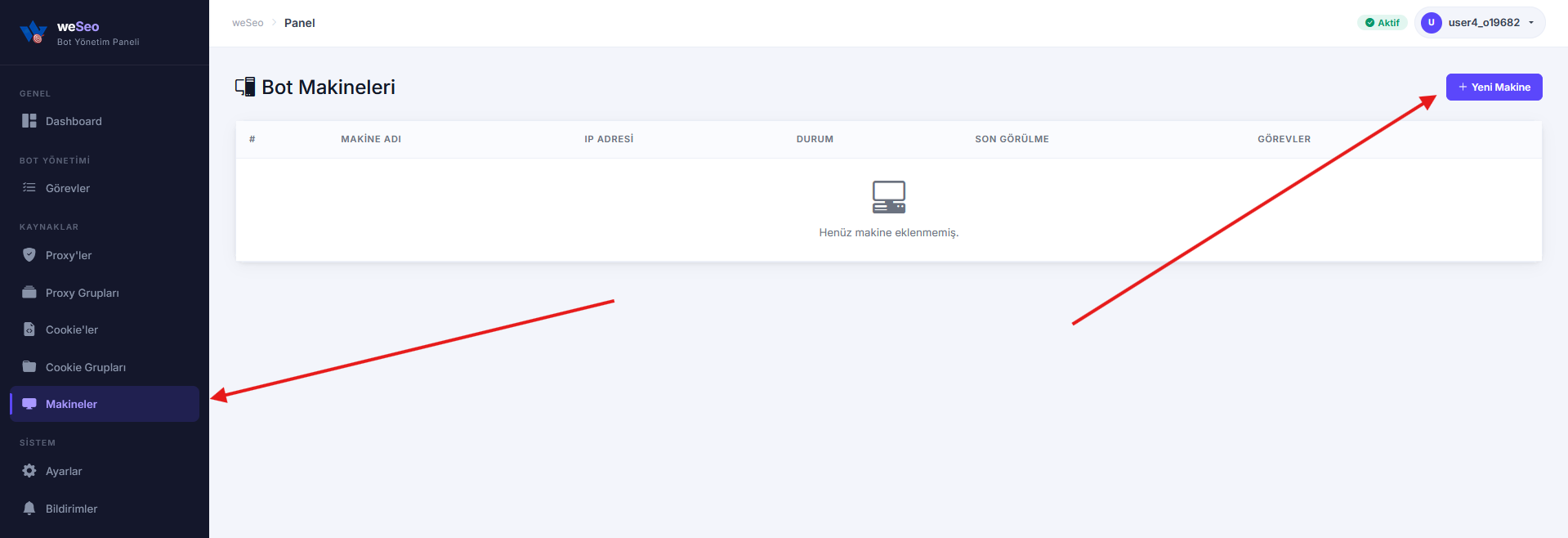
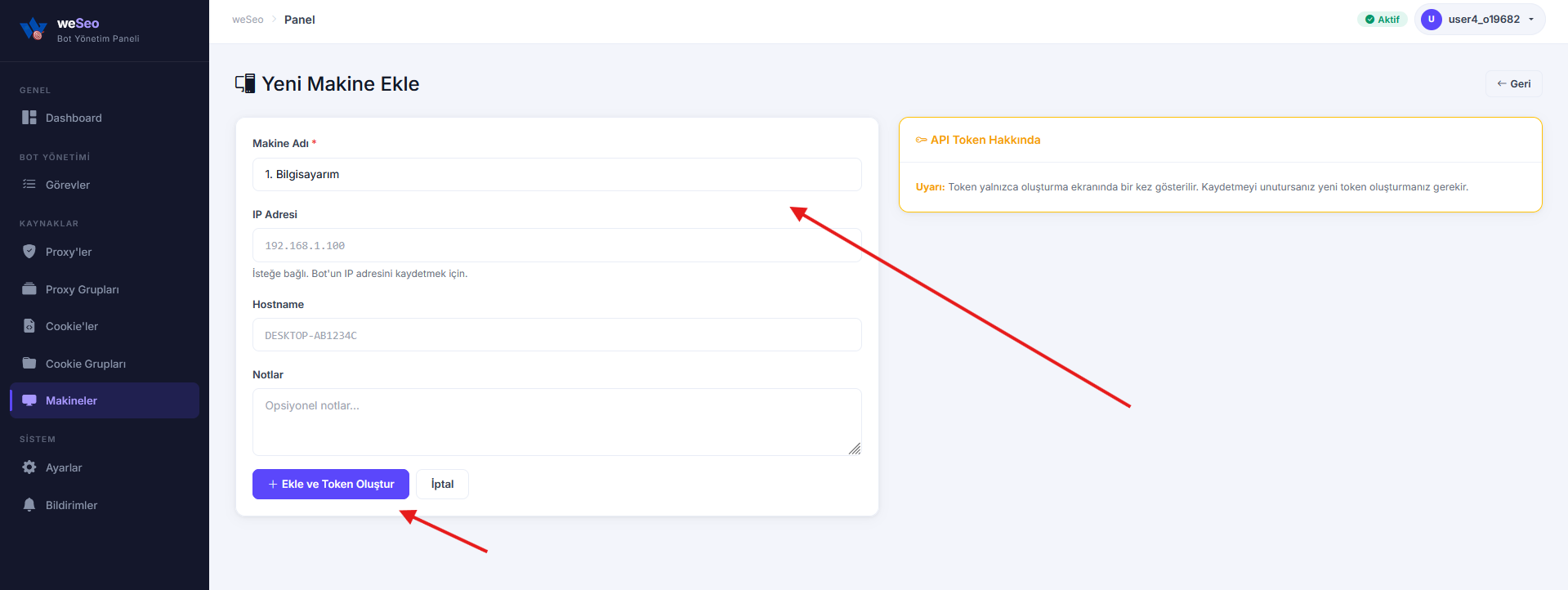
Adding a bot machine
Menu: Machines → Add New Machine
Steps
1. Enter Machine Name (e.g. Bot-01, Server-TR-1) — required field, the label you use to distinguish your machines
2. Optional: IP Address, Hostname, Notes.
3. Click the Add and Generate Token button.
4. Copy the API Token shown in the popup — it is displayed only once.
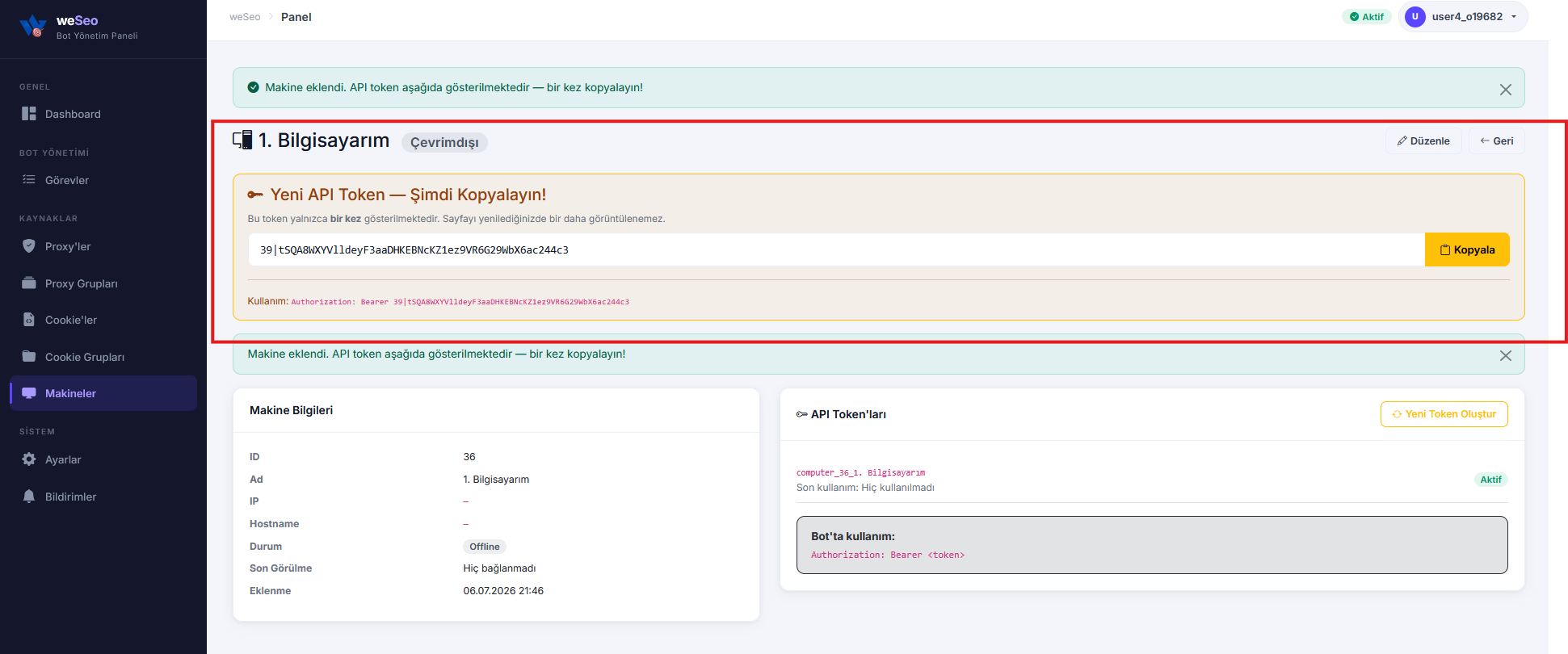
Bot connection
Your bot software connects to the panel as follows:
Copy the API key created for the machine and your account API key, then paste them as shown in the screenshot below. You can also view your Panel API key at https://weseo.we1.town/settings or in your customer panel.
Each machine has a different API key; the Panel API key is unique (detailed below). It is the same across all your machines.
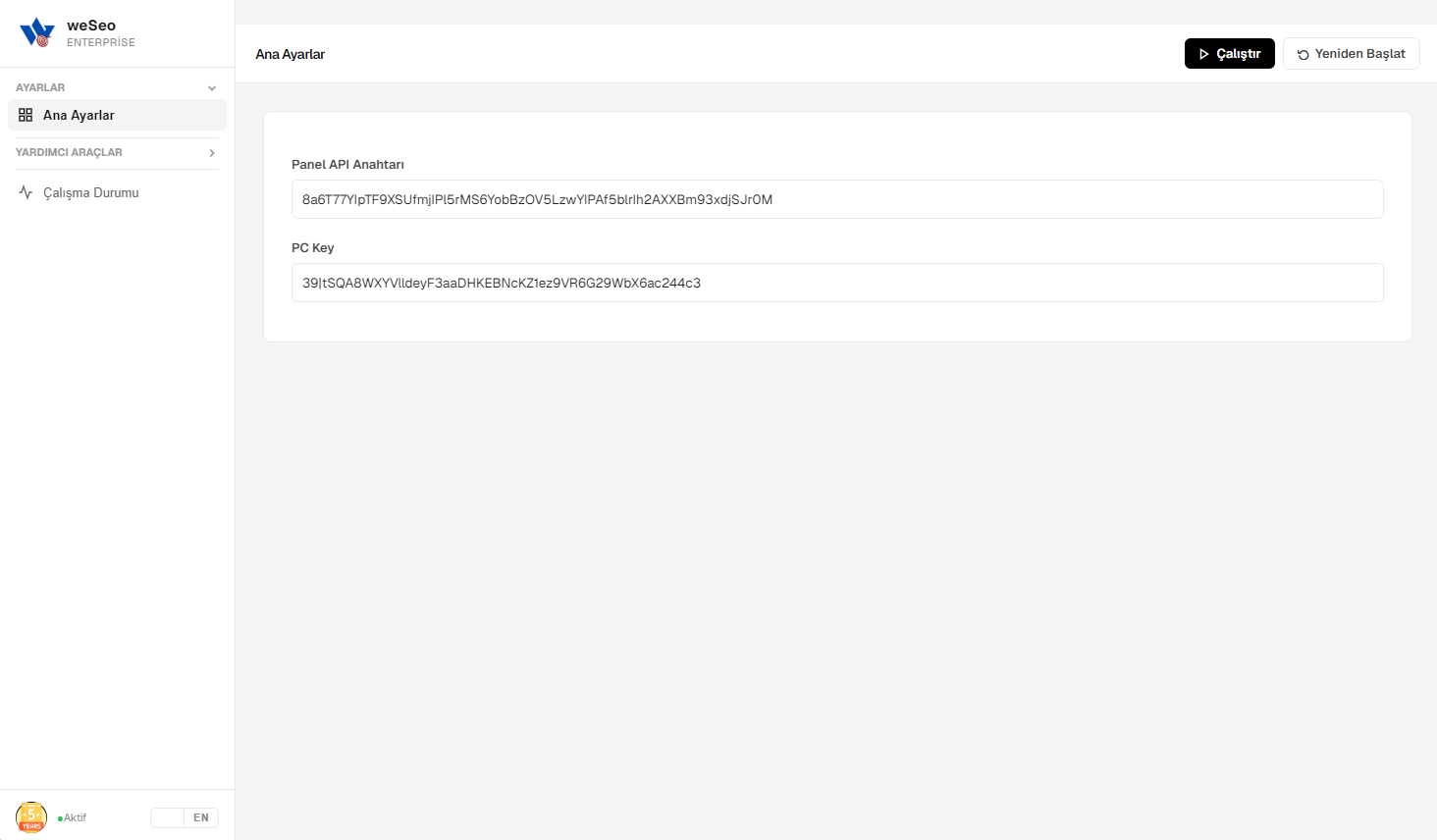
Then click the "Run" button at the top right.
Congratulations! The machine has been successfully connected to weSeo Web Panel. You can now manage this machine from the panel.
Proxy management
Creating a proxy group
Menu: Proxy Groups → New Group
When selecting proxies in tasks, you match by group name. Example group names: TR-Residential, US-Datacenter.
Adding proxies
Menu: Proxies → New Proxy
| Field | Description |
|---|---|
| Proxy Group | Optional; select to assign to a group |
| Protocol | HTTP, HTTPS, SOCKS4, SOCKS5 |
| Host / IP | Proxy server address |
| Port | Connection port |
| Username / Password | If authentication is required |
Bulk Import: You can upload many proxies at once using the Bulk Import button on the Proxies page.
Filtering in proxy list
• Group filter — show a specific group or ungrouped proxies
• Sort by fail count — quickly find problematic proxies
• Failed only — list those with fail_count > 0
Cookie management
Creating a cookie group
Menu: Cookie Groups → New Group
It is recommended to create at least one group before uploading cookies.
Uploading cookie files
Menu: Cookies → Upload Cookie File
| Rule | Value |
|---|---|
| Supported format | .txt, .json |
| File size | Max. 5 MB / file |
| File count | Max. 500 files / upload |
| Group | If not selected, added to "Ungrouped" |
Settings and notifications
API Key
Menu: Settings
• The panel automatically assigns you an API Key.
• Generate New Key — the old key becomes invalid immediately.
Bot machines authenticate with their own Sanctum machine token. The machine token automatically identifies which user it belongs to; you also need to send the user API key on the bot side. The API key is for external integrations. Public API docs are not published by default; if you share your development plans with us, we can provide API docs so you can manage your own software through the Web Panel in addition to weSeo.
Telegram notifications
Menu: Settings → Telegram API Settings
| Field | Where to get it |
|---|---|
| Telegram Bot Token | @BotFather |
| Telegram Chat ID | Notification channel/group ID — learn it via @userinfobot |
After saving settings, check integration status on the Notifications page and send a test notification.
Creating tasks
Menu: Tasks → New Task (the "New Task" card on Dashboard goes to the same page)
The task form is a 7-tab bot profile builder. Switch between tabs using the left navigation; the progress bar shows which section you are in.
Tab 1: Main Settings
Task Information
• Task Title (required) — name shown in panel
• Notes — optional description
Schedule (required)
| Mode | Description |
|---|---|
| One-time | Start at a specific date/time or immediately |
| Recurring | Repeats at intervals (minutes / hours / days) |
• Start Date/Time — format: DD.MM.YYYY HH:MM (24-hour, Turkey time)
• Start Now button — clears schedule, queues task immediately
• Repeat Interval — recurring mode only
• Max. Run Count — leave empty for unlimited repeats
Other basic fields
• Priority (1–10) — higher value = runs first
• Computer — bot machine that will run the task
• Total Hits (required) — how many times it will run
• Threads (required) — number of concurrent browsers
• Single Domain / Multi Domain — target configuration
• Hit Type, Domain, Keywords
• Speed Modee, Max Search Page
• Referrer list, Google domain, http/https
Currently only Google is supported as a search engine.
Tab 2: Proxy Settings
• Proxy kullanılsın mı?
• Proxy Group seçimi
• Proxy türü
• Aramadan sonra proxy bağlansın mı?
• Captcha durumunda yeni proxy alınsın mı?
• Google aramaları için ayrı proxy grubu
Tab 3: Fingerprint
• FingerprintSwitcher API anahtarı
• Cihaz seçimi (masaüstü / mobil vb.)
• Tarayıcı veya Request modu
Tab 4: On-site Actions
• Bekleme süreleri (min / max / ilk bekleme)
• Rastgele tıklama ve rastgele hareket
• Detaylı Settings — rastgele tıklama veya hareket "Evet" seçildiğinde açılır
Tab 5: Cookie Settings
• Cookie kullanım modu
• Cookie Grubu seçimi
• Cookie aktif değilse ne yapılsın?
• Fingerprint seçeneği, profil ayarları
• Cookie zorla içe aktar
Tab 6: Captcha
• Captcha çözümü açık/kapalı
• Captcha servisi ve API anahtarı
Tab 7: Other Settings
• Google aramalarında zaman filtresi
• Güvenli arama kapatma
• Zaman filtresi değeri
When you save the form, the task is created in Pending status and waits to be picked up by the assigned bot machine.
All settings are the same as weSeo and fully integrated.
Task statuses
| Status | Description |
|---|---|
| Draft | Record not started yet |
| Pending | In queue; waiting for bot to pick up |
| Waiting for bot | Scheduled time reached but bot has not picked it up |
| Running | Bot is actively running the task |
| Waiting for bot pause | Pause request sent; waiting for bot confirmation |
| Paused | Task stopped |
| Completed | All hits completed successfully |
| Failed | Ended with error |
| Cancelled | Cancelled manually |
Monitoring and managing tasks
Task list
Menu: Tasks
Filters:
• Status tabs (All, Pending, Running, Completed, etc.)
• Title or search term
• Target URL (partial match)
• Machine
• Priority
The list updates live — status and progress change without refreshing.
Bulk actions (görevleri seçtikten sonra):
| Action | Effect |
|---|---|
| Pause | Sends pause request; stops when bot confirms |
| Reset | Sets status to pending, resets counters |
| Cancel | Cancels the task |
| Delete | Permanently deletes task (running tasks are skipped) |
Task detail
Click the Detail link on the task row.
Left panel — Task info:
• Progress bar (current / total hits)
• Target URL, search term, search engine
• Assigned machine, priority, start/end times
Right panel — Live logs:
• Log levels: info, success, warning, error, hit
• New log lines arrive without page refresh
• Download logs as CSV
• Clear logs
Actions:
• Task settings — read-only configuration summary
• Edit — except running/completed tasks
• Clone — new draft task with same settings
• Start now — skip schedule, queue immediately
Dashboard
Menu: Dashboard
Dashboard is the summary page that opens after you log in.
Statistics cards:
| Card | Shows |
|---|---|
| Active Tasks | Şu an çalışan görev sayısı |
| Total Tasks | Tüm görevler |
| Active Proxies | Active proxy sayısı |
| Connected Machines | Çevrimiçi makine sayısı |
Quick access cards: New Task, Add Proxy, Add Machine, Settings
Recent tasks table: Latest tasks with progress, status, and detail link.
Security notes
• Keep machine token and API key confidential; do not share with third parties.
• The machine token is shown only once when created; if you lose it, you must generate a new token.
• When you regenerate the API key, the old key becomes invalid immediately.
• Each customer only sees their own tasks, proxies, cookies, and machines. Therefore each customer must purchase weSeo Web Panel for their own weSeo software. Shared use with someone who has a different weSeo license is not allowed. There is no sub-user feature.
• Update your password regularly; do not use "Remember me" on shared computers.
Frequently asked questions
I cannot log in to the panel. What should I do?
Check your username and password. If your license has expired, login is blocked — contact support. If your account was disabled, an administrator must reactivate it.
My machine appears offline.
Make sure the bot application is running. Check from machine detail that the token is entered correctly. If the token was lost, get a new one with Generate New Token and paste it into the bot software.
My task does not start and stays in "Waiting for bot".
Make sure a Computer is assigned to the task. Verify the assigned machine is Online from the Machines list. For scheduled tasks, the start time must have passed; use Start now from task detail to start immediately.
I am getting proxy errors.
Open the Failed only filter in the proxy list to identify problematic proxies. Disable or delete failed proxies; select a different proxy group in the task.
My cookie file is not uploading.
Make sure you have created a Cookie Group first. Verify the file format is .txt or .json and that you do not exceed the 5 MB per file limit.
Telegram notifications are not arriving.
On the Settings page, verify that Bot Token and Chat ID are entered correctly. Send a test notification from the Notifications page. Chat ID may need a leading minus sign (group/channel IDs).
I paused the task but it still shows "Waiting for bot pause".
The pause request is sent to the bot; when the bot completes the current operation and confirms, the status becomes Paused. If the bot is offline, confirmation may be delayed.
Is there a difference between "New Campaign" and "New Task"?
No. The "New Campaign" card on the Dashboard also redirects to Tasks → New Task. In the panel, task and campaign terms refer to the same function.
What is the difference between API key and machine token?
Makine token'ı bot yazılımının panele bağlanması içindir (Authorization: Bearer). API anahtarı harici entegrasyonlar içindir (X-API-Key veya Bearer). Bot makinesi kendi token'ı ile kimlik doğrular.
Last updated: July 6, 2026