
Sign in to the panel
SERP Tracker (WESERP) is the cloud panel where you track Google SERP positions. Open it from the my.we1.town SERP category or the panel URL provided with your order.
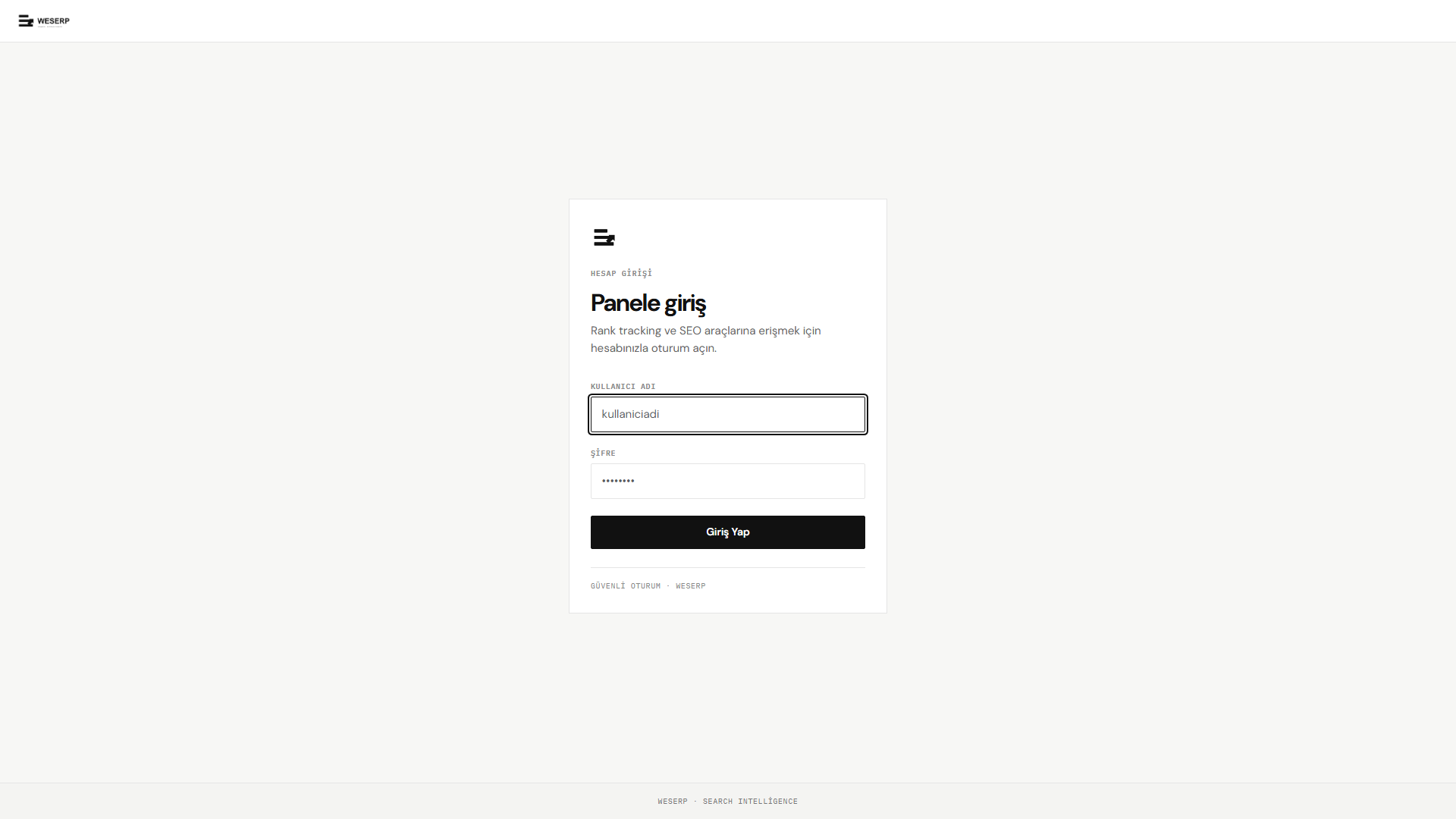
- Enter your username and password.
- Click Giriş Yap (Sign in).
- Get credentials from your customer panel / order; never share your password.
Dashboard overview
After login, Dashboard summarizes your account: campaigns, keywords, single checks, and credit balance.
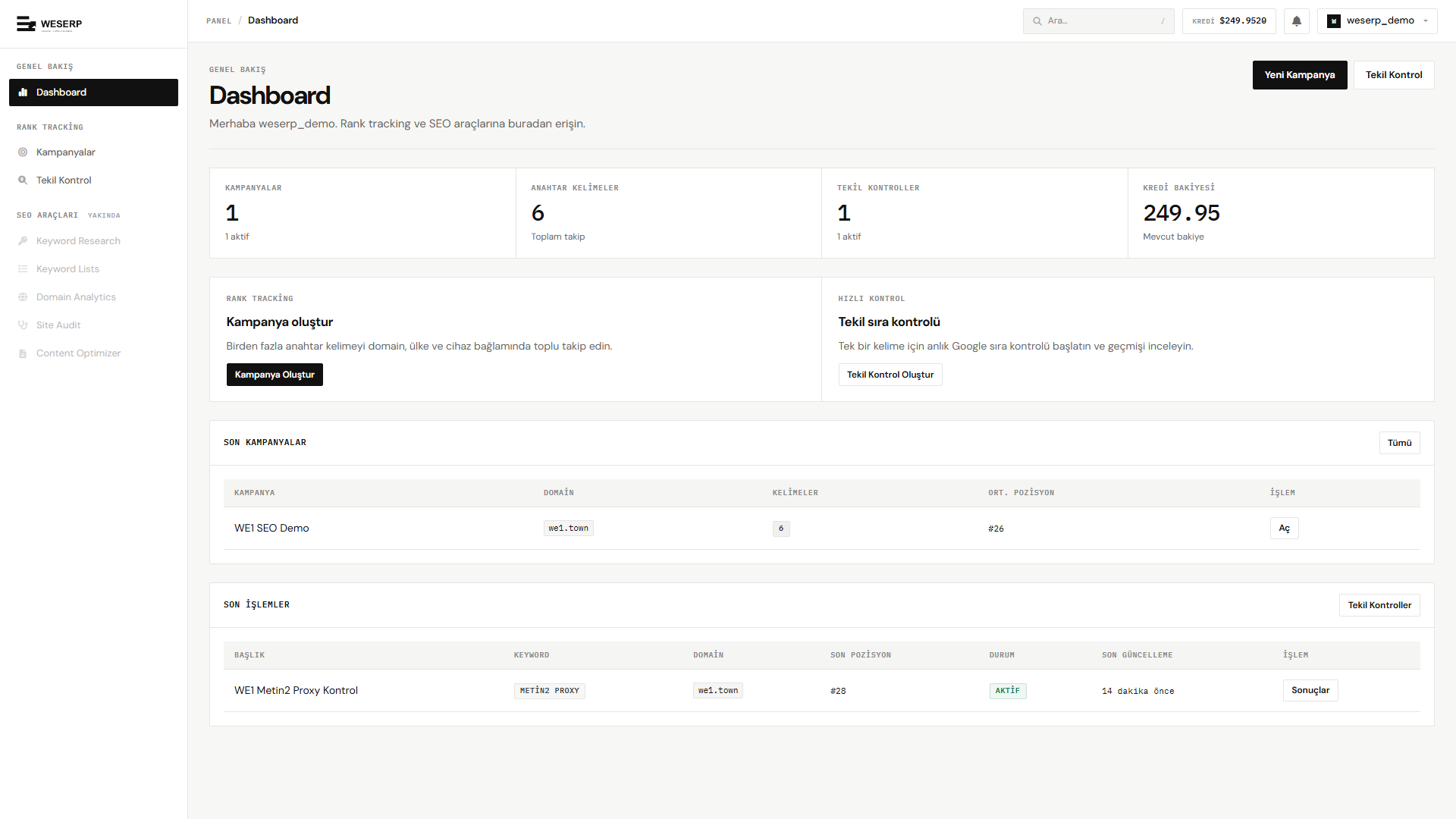
- Yeni Kampanya / Tekil Kontrol: Quick-start actions.
- Son Kampanyalar: Domain, keyword count, and average position.
- Son İşlemler: Recently run single checks.
- The header Kredi balance updates after each check.
Create a campaign
Open Kampanyalar in the sidebar. The list may be empty at first; campaigns group a domain with keywords for ongoing tracking.
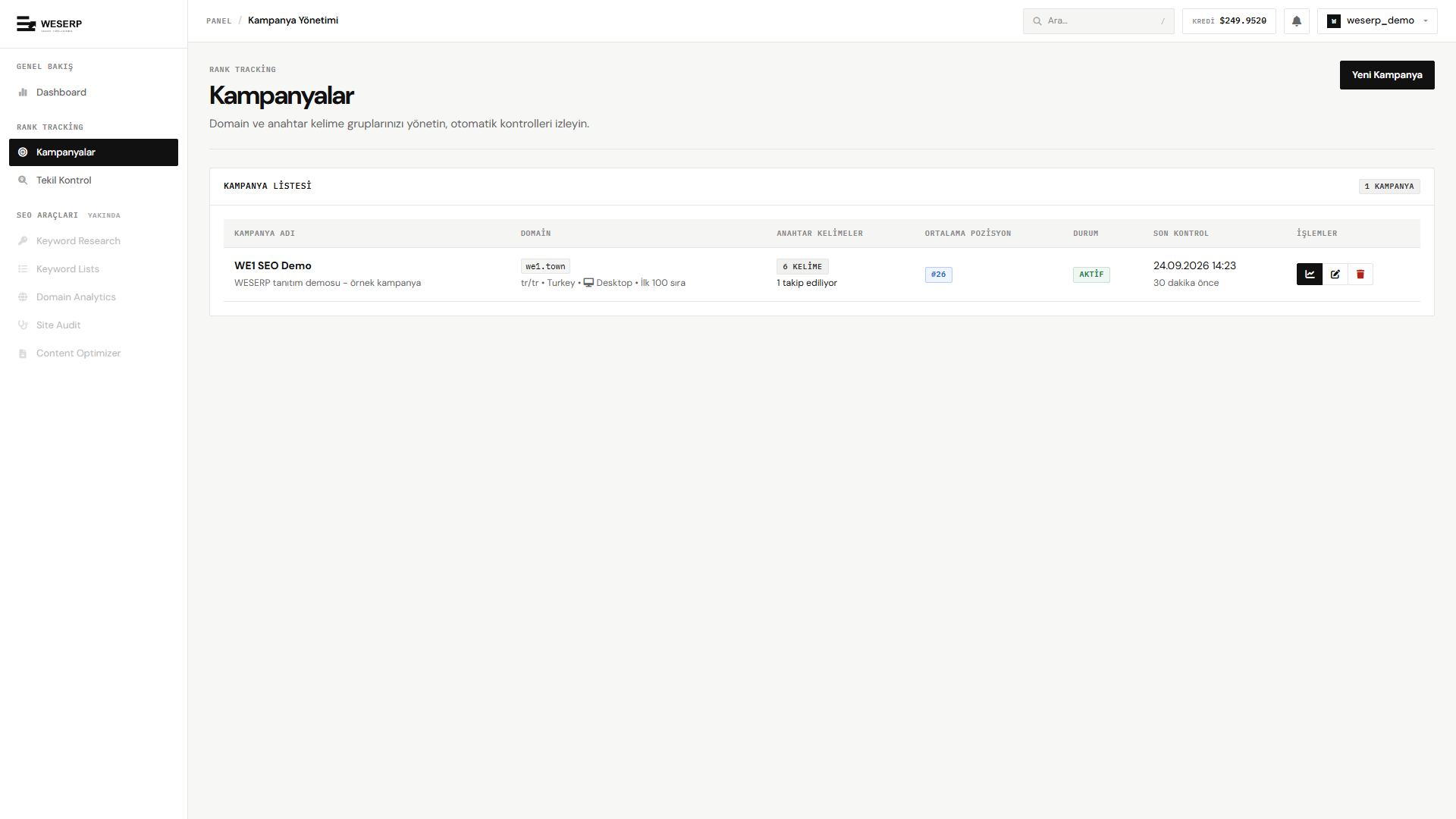
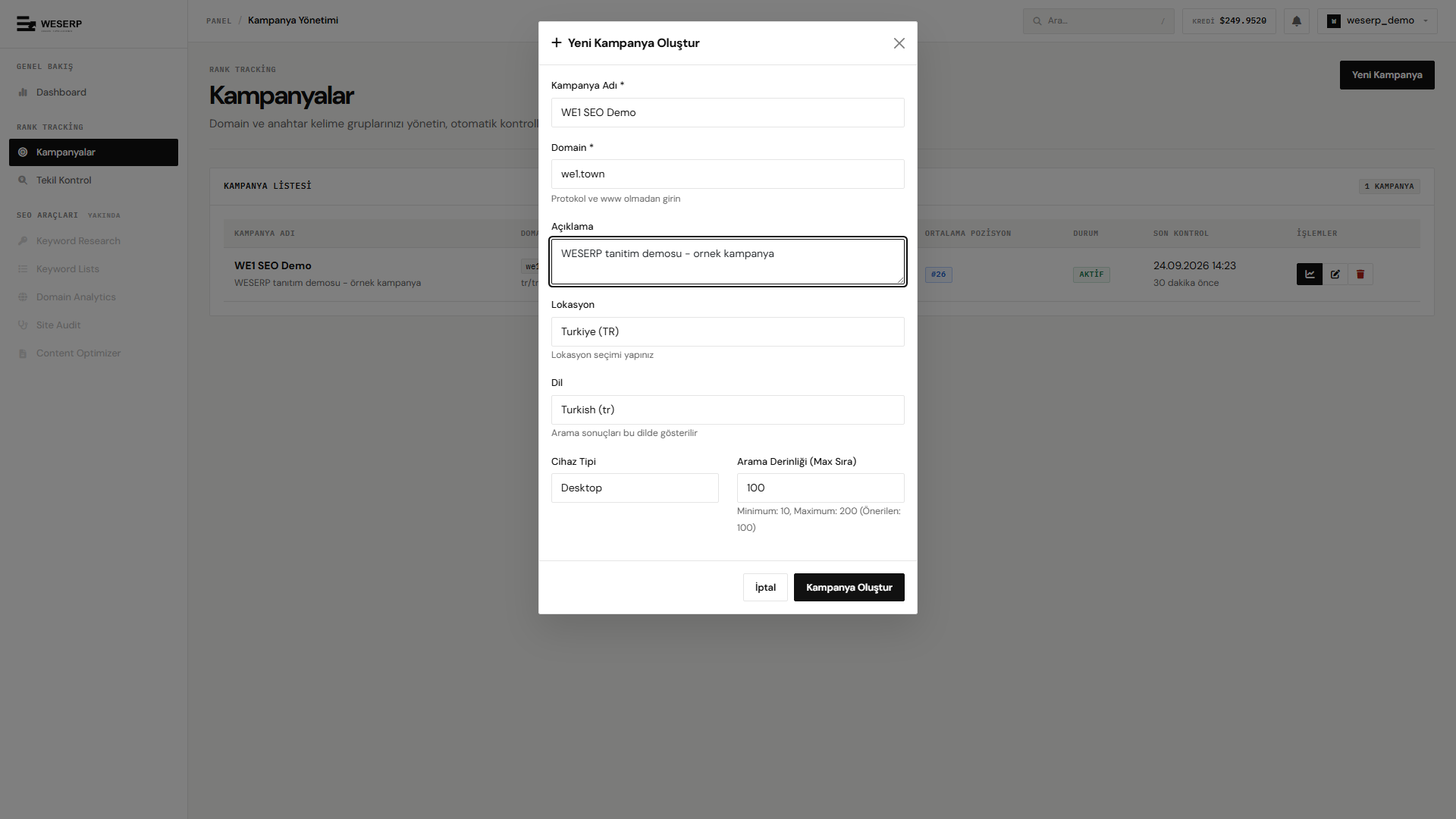
Click Yeni Kampanya:
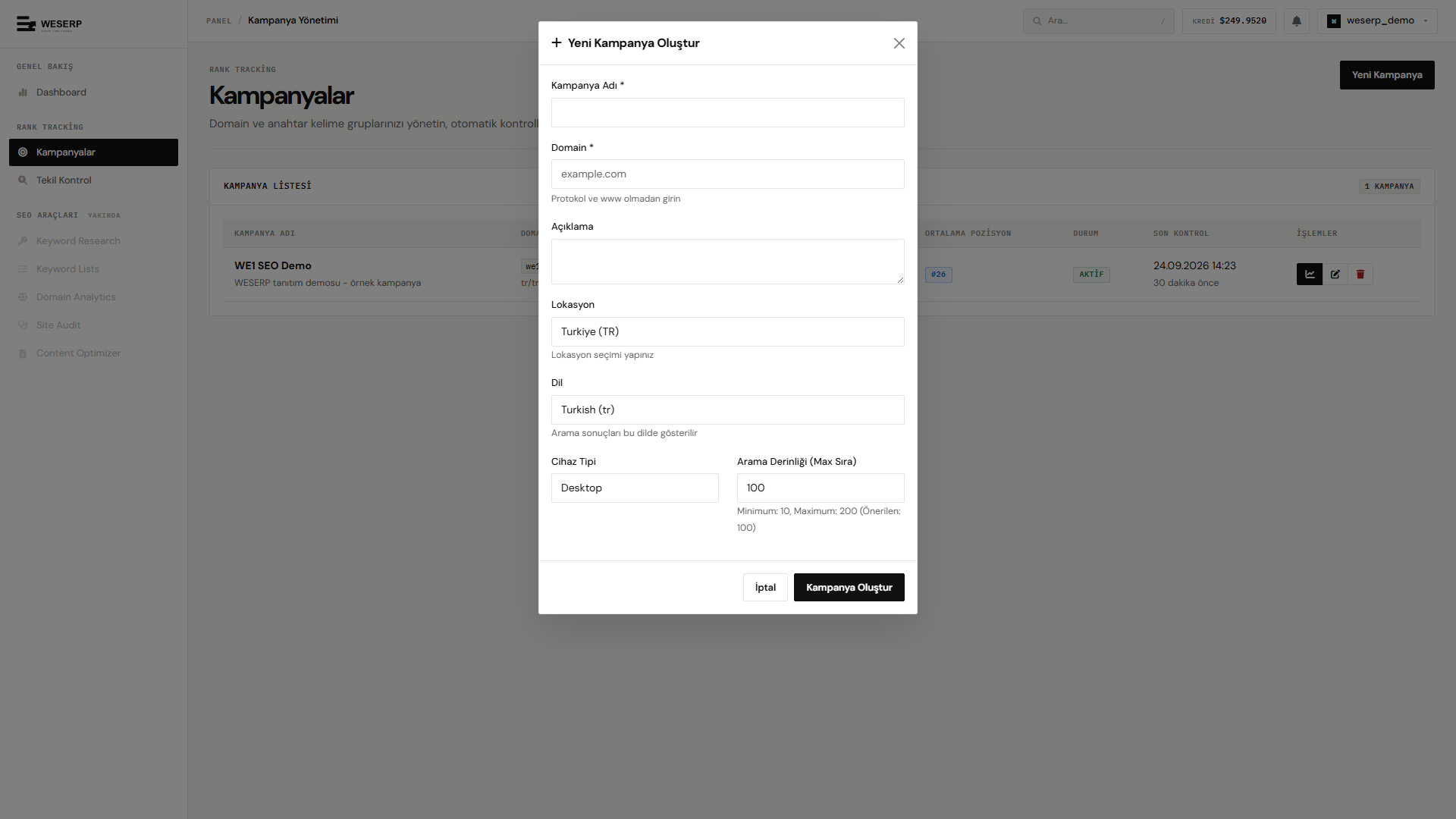
- Kampanya adı: Display name (required).
- Domain: Without protocol or www (e.g.
example.com). - Açıklama: Optional notes.
- Lokasyon / Dil / Cihaz tipi: Target SERP market (e.g. Türkiye, Turkish, Desktop).
- Arama derinliği (max sıra): 10–200; recommended 100.
Fill the form and click Kampanya Oluştur:
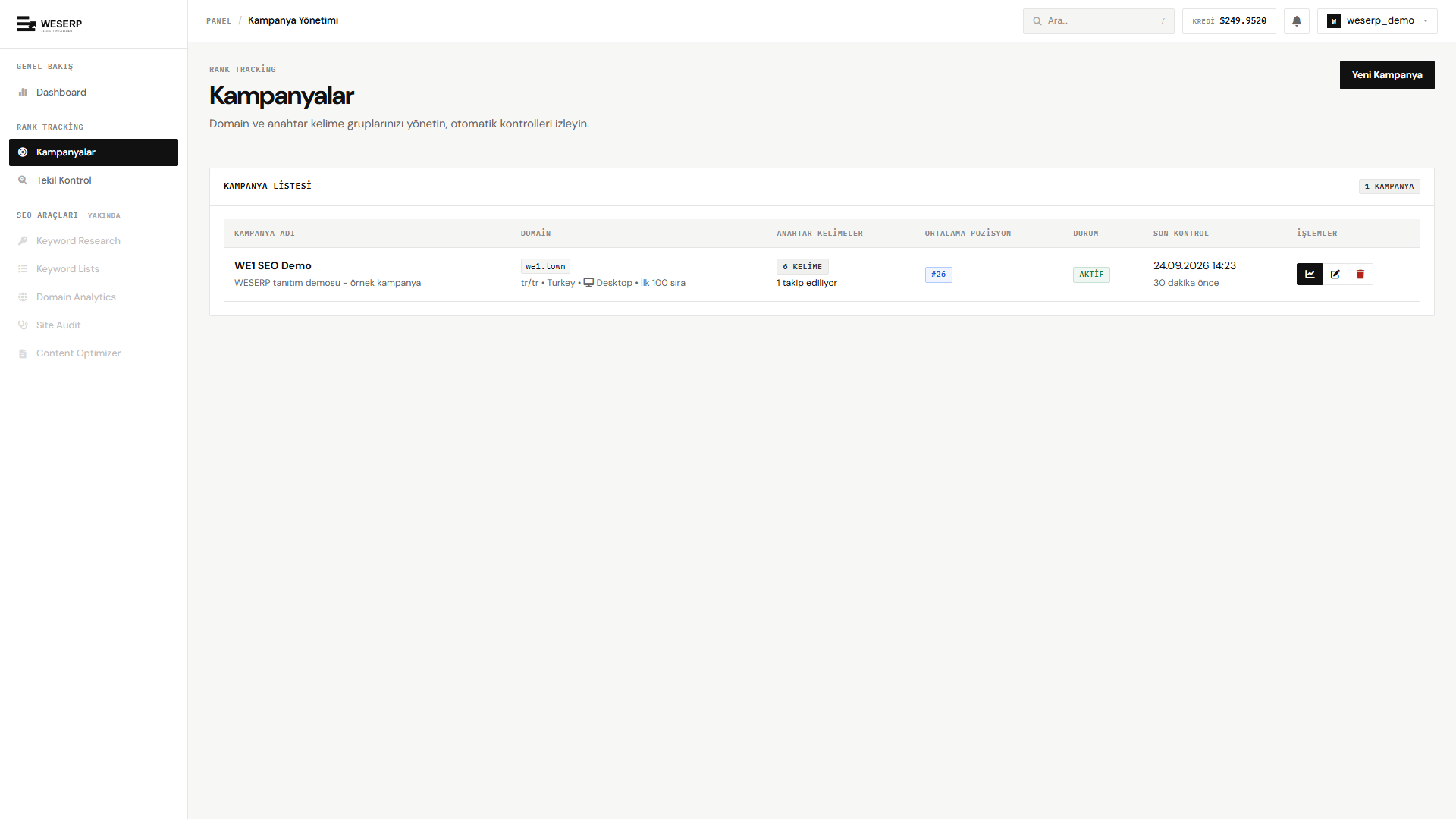
The campaign appears in the list; open it with the row actions.
Add keywords
Inside a campaign you see the keyword table and stats. With no keywords yet, an empty state is shown.
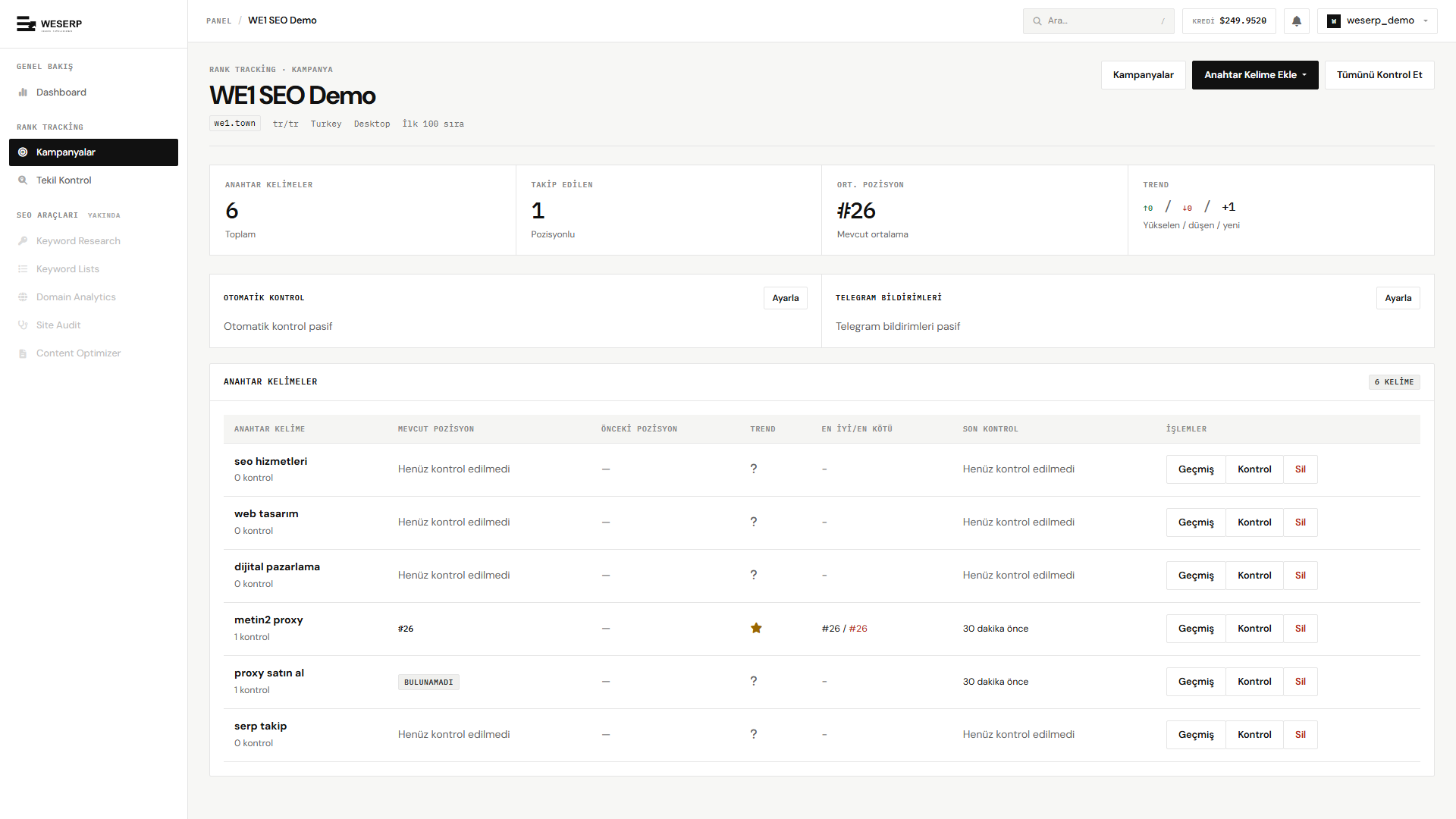
Use Anahtar Kelime Ekle for bulk add. One keyword per line:
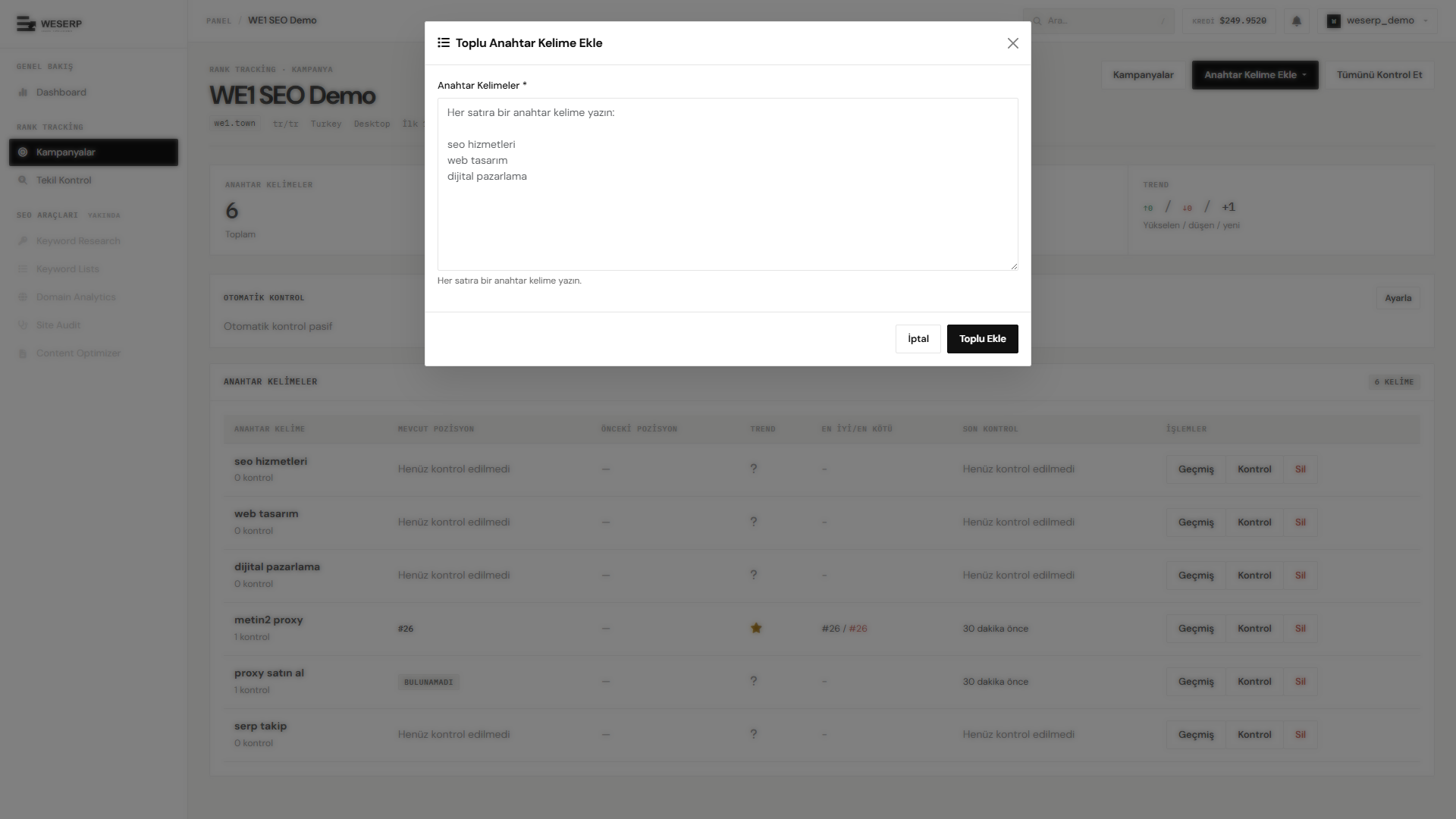
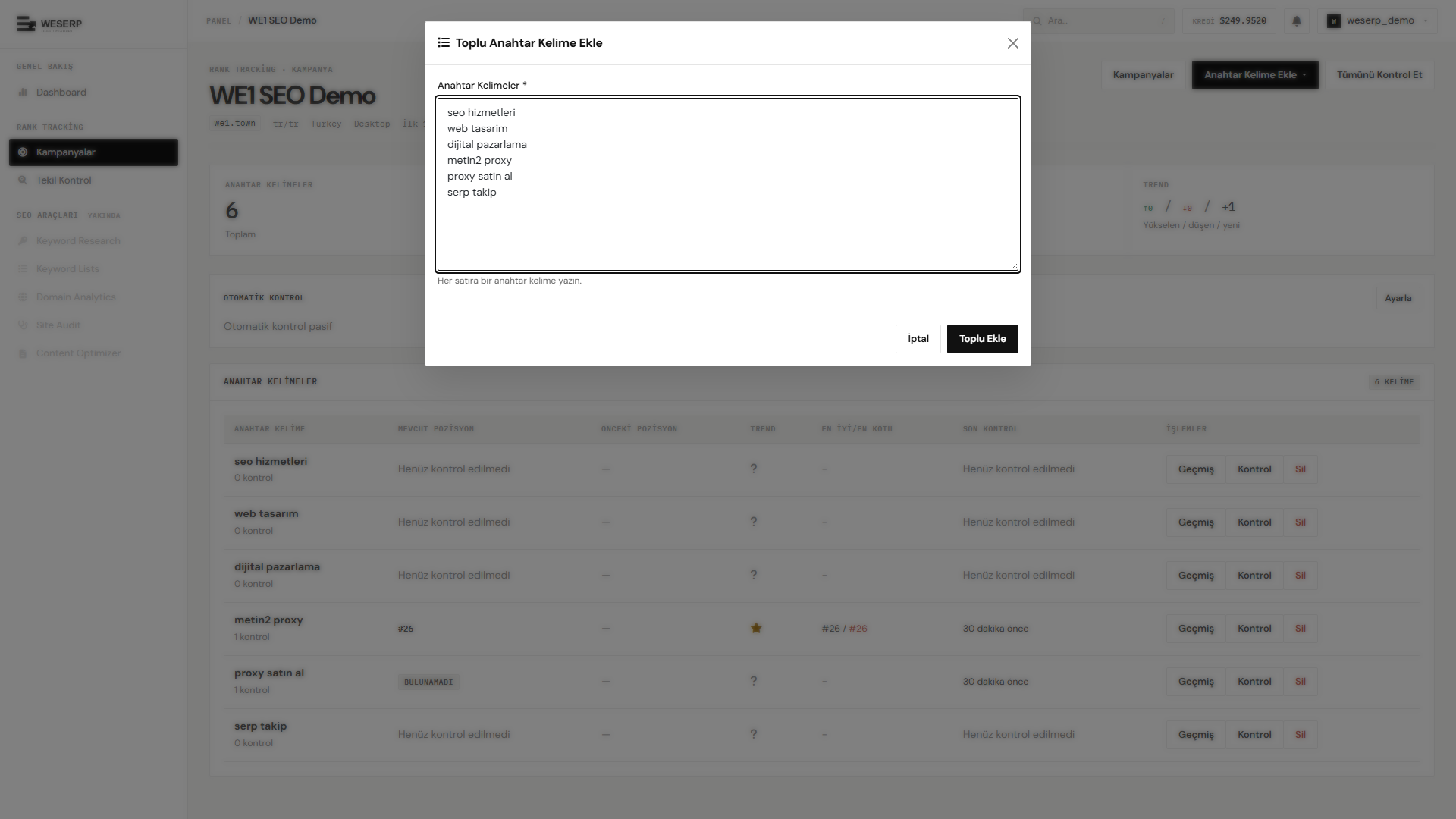
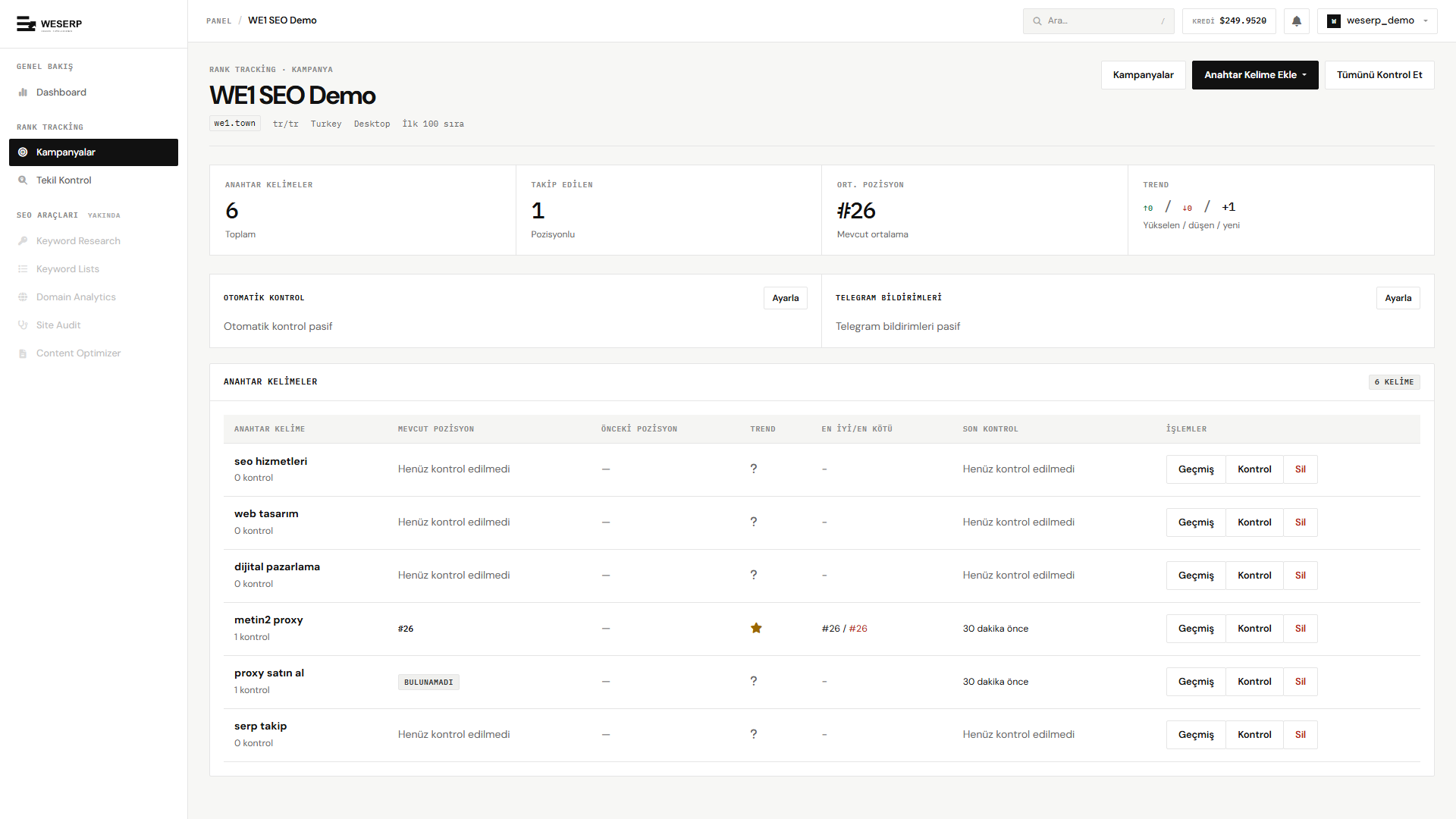
After Toplu Ekle, keywords appear in the table. Use row Kontrol, Geçmiş, Sil, or Tümünü Kontrol Et for a full run.
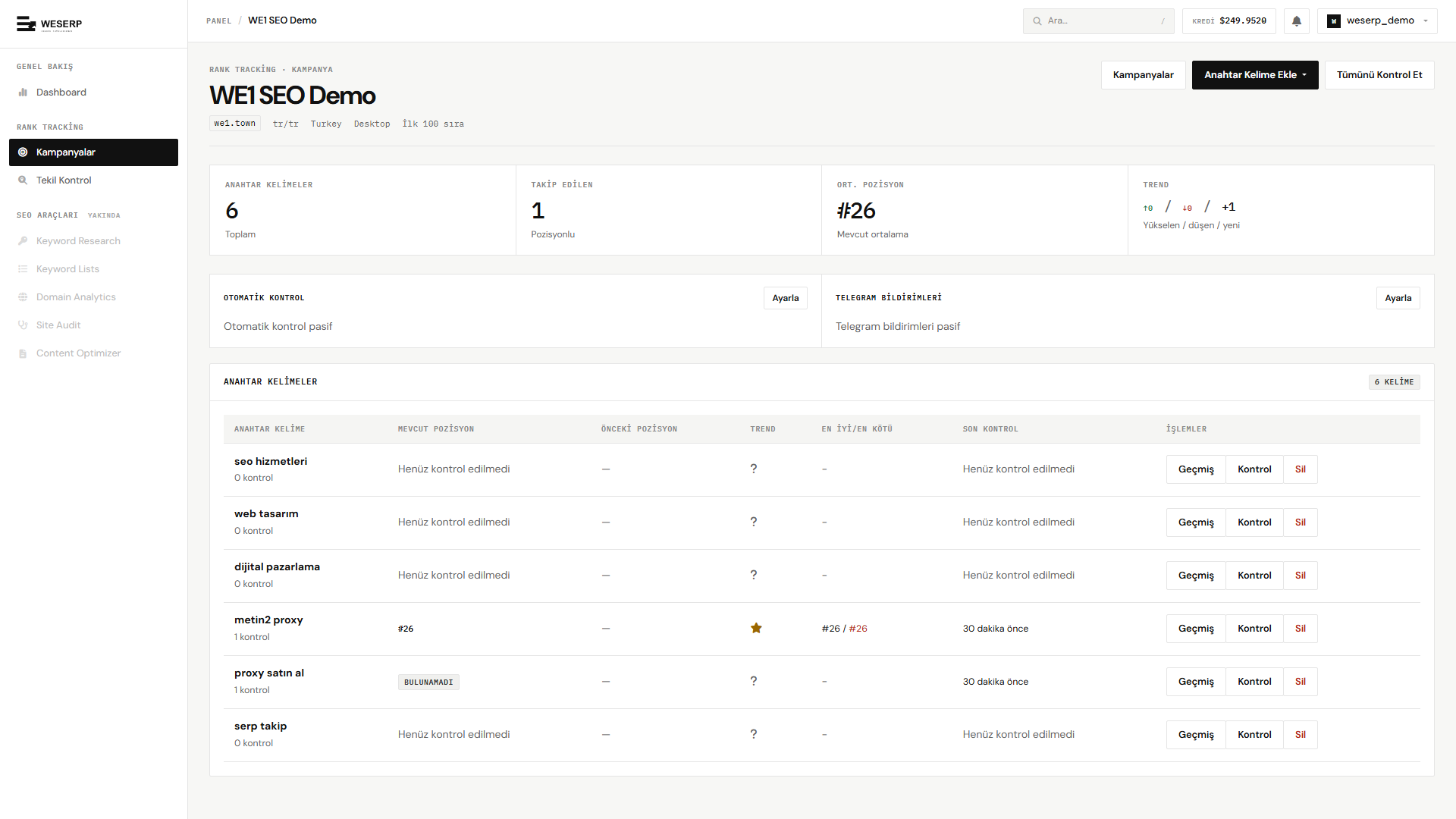
When checks finish, current/previous position, trend, and best–worst fill in:
Automatic checks (scheduler)
Enable automatic control so keywords are rechecked on a schedule.
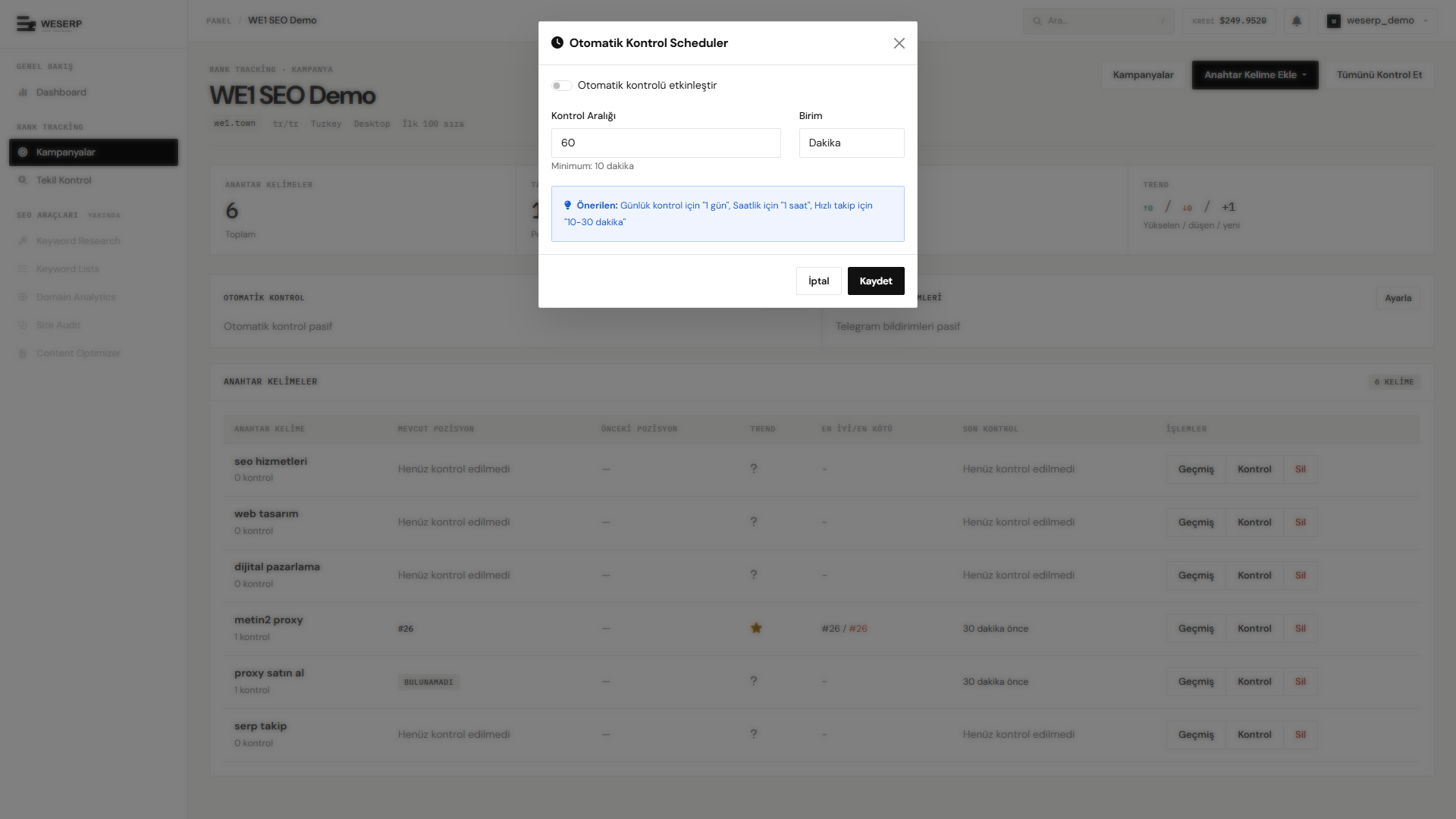
- Turn on Otomatik kontrolü etkinleştir.
- Set Kontrol aralığı and unit (minutes / hours / days). Minimum: 10 minutes.
- Tip: 1 day for routine tracking; 10–30 minutes or hourly for volatile keywords.
- Click Kaydet. Every automated run spends credits — match the interval to your budget.
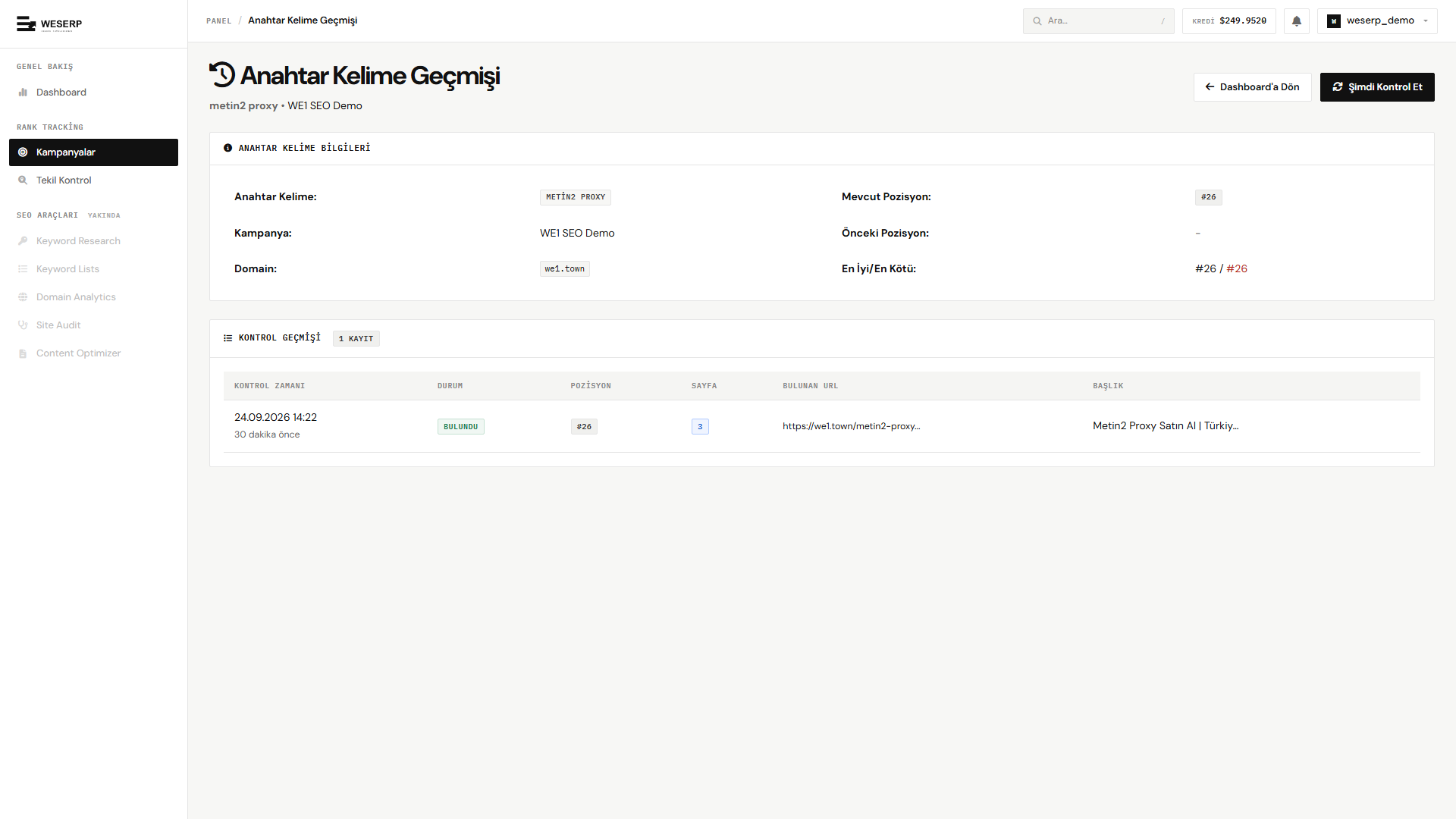
Keyword history
Use row Geçmiş to inspect position changes for a single keyword over time.
Single check
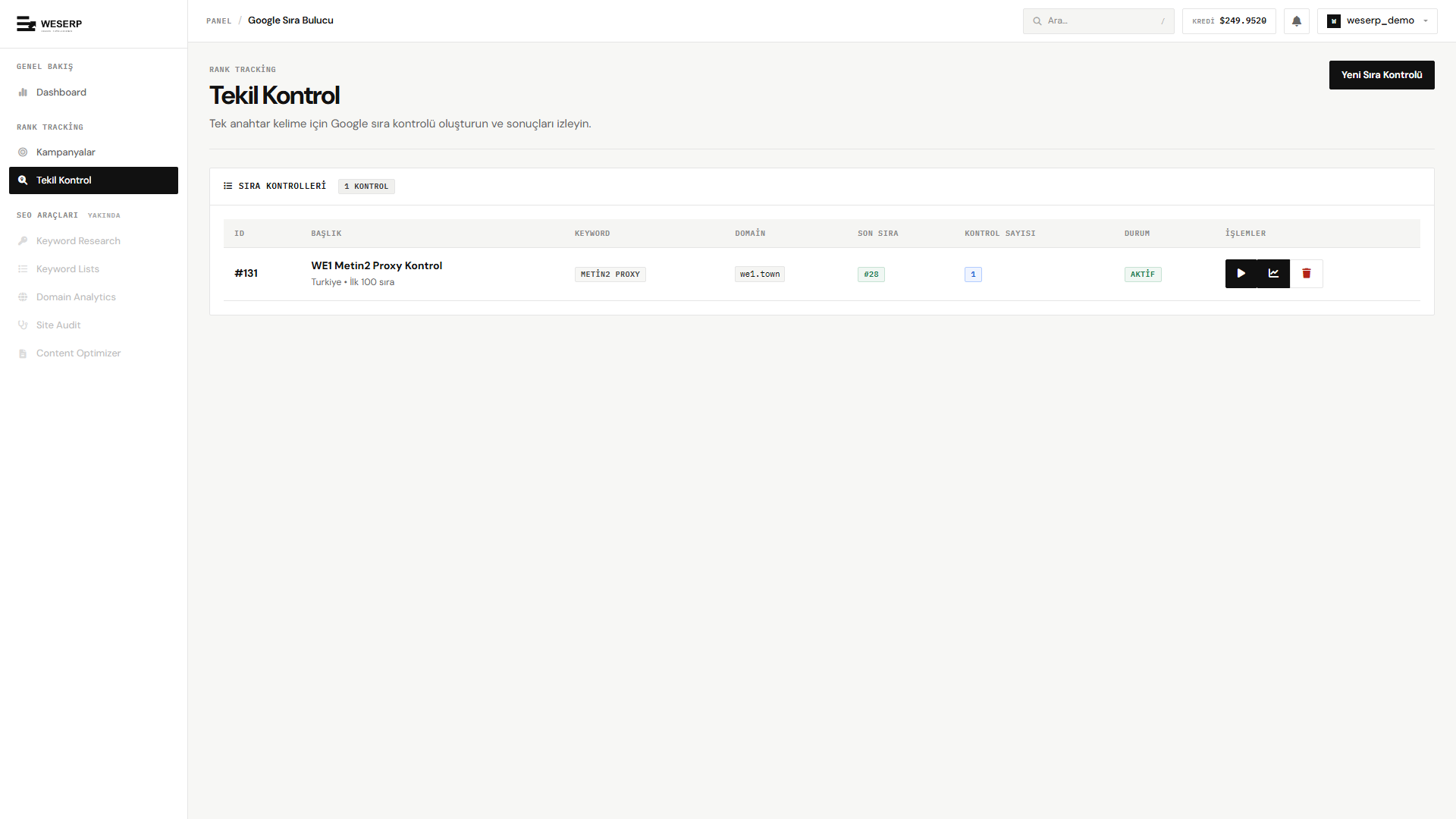
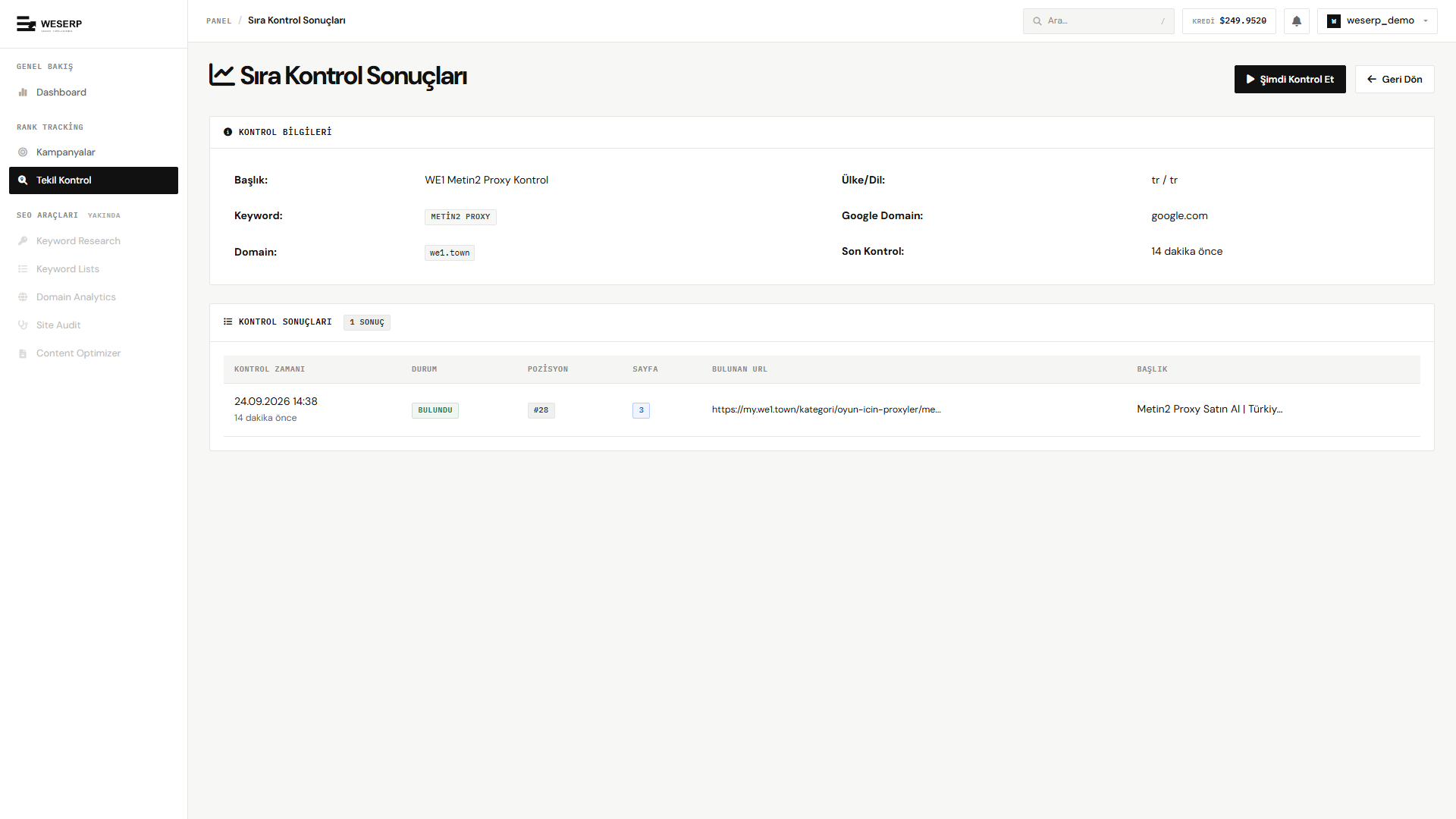
For a one-off Google rank lookup without a campaign, open Tekil Kontrol.
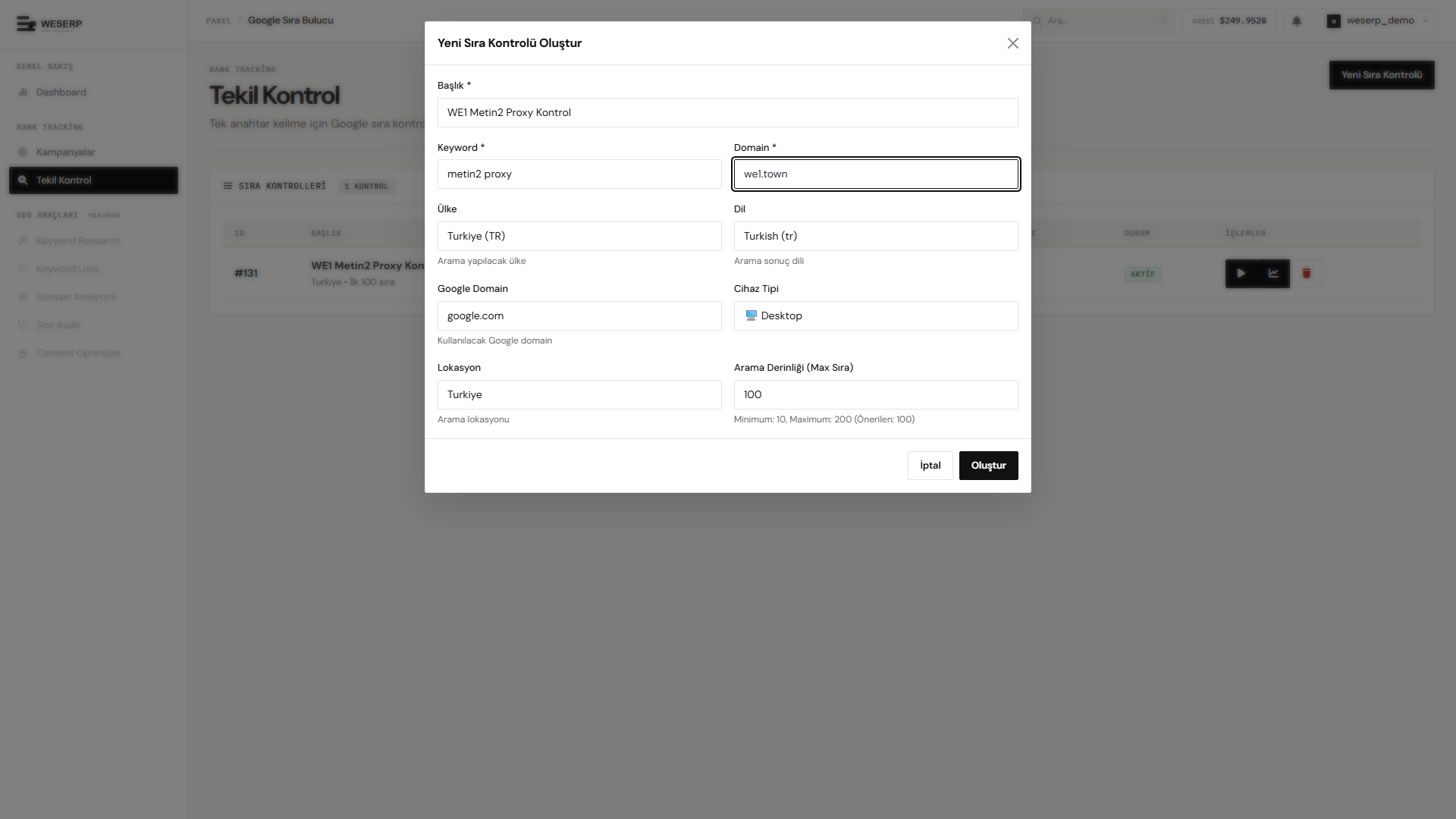
In Yeni Sıra Kontrolü, set title, keyword, domain, country, language, Google domain, device, location, and search depth:
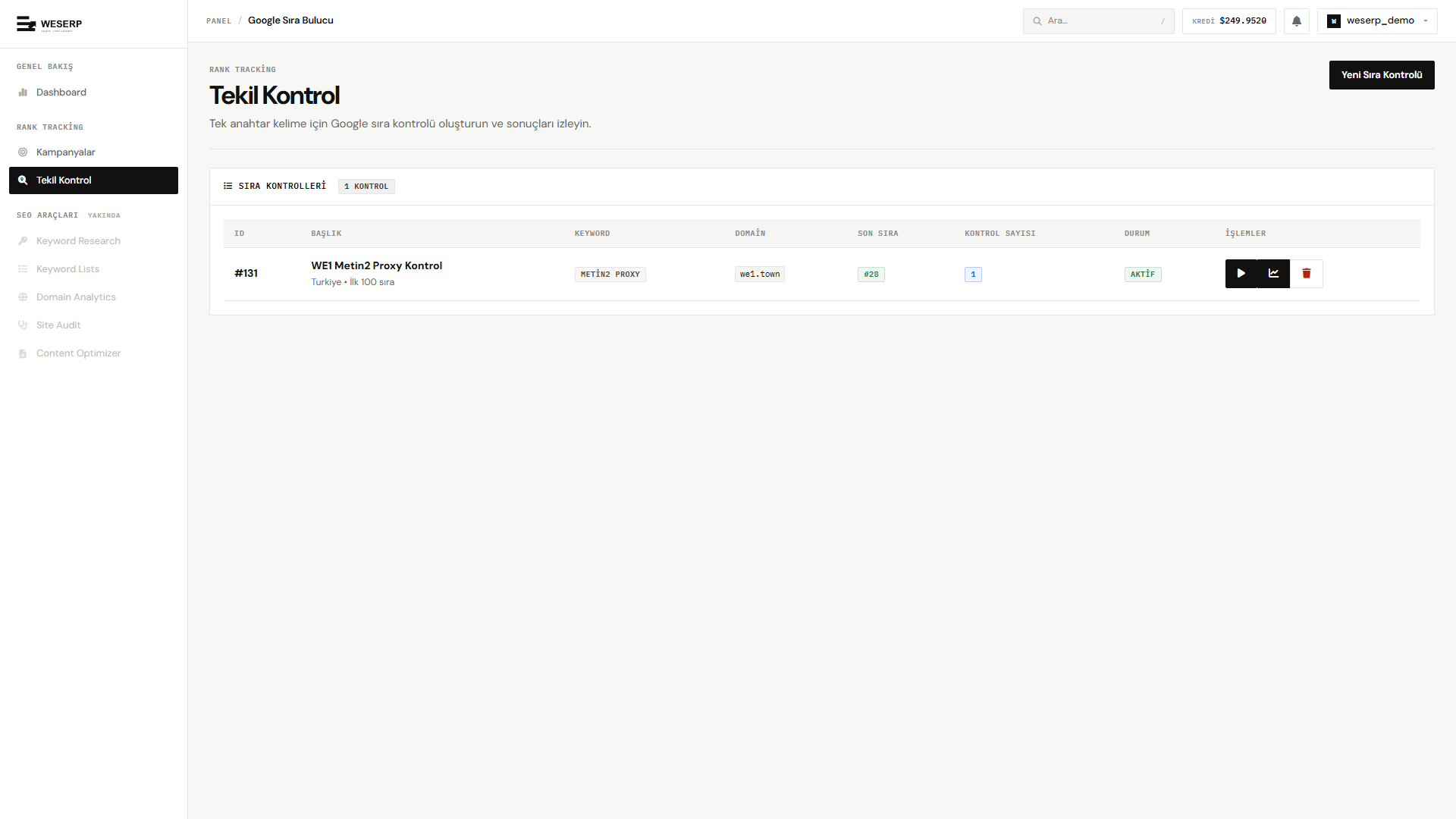
After Oluştur, the job appears in the list; run it and open results.
Credits and balance
Each position check spends credits. Watch the header balance and open Kredi Geçmişi for details.
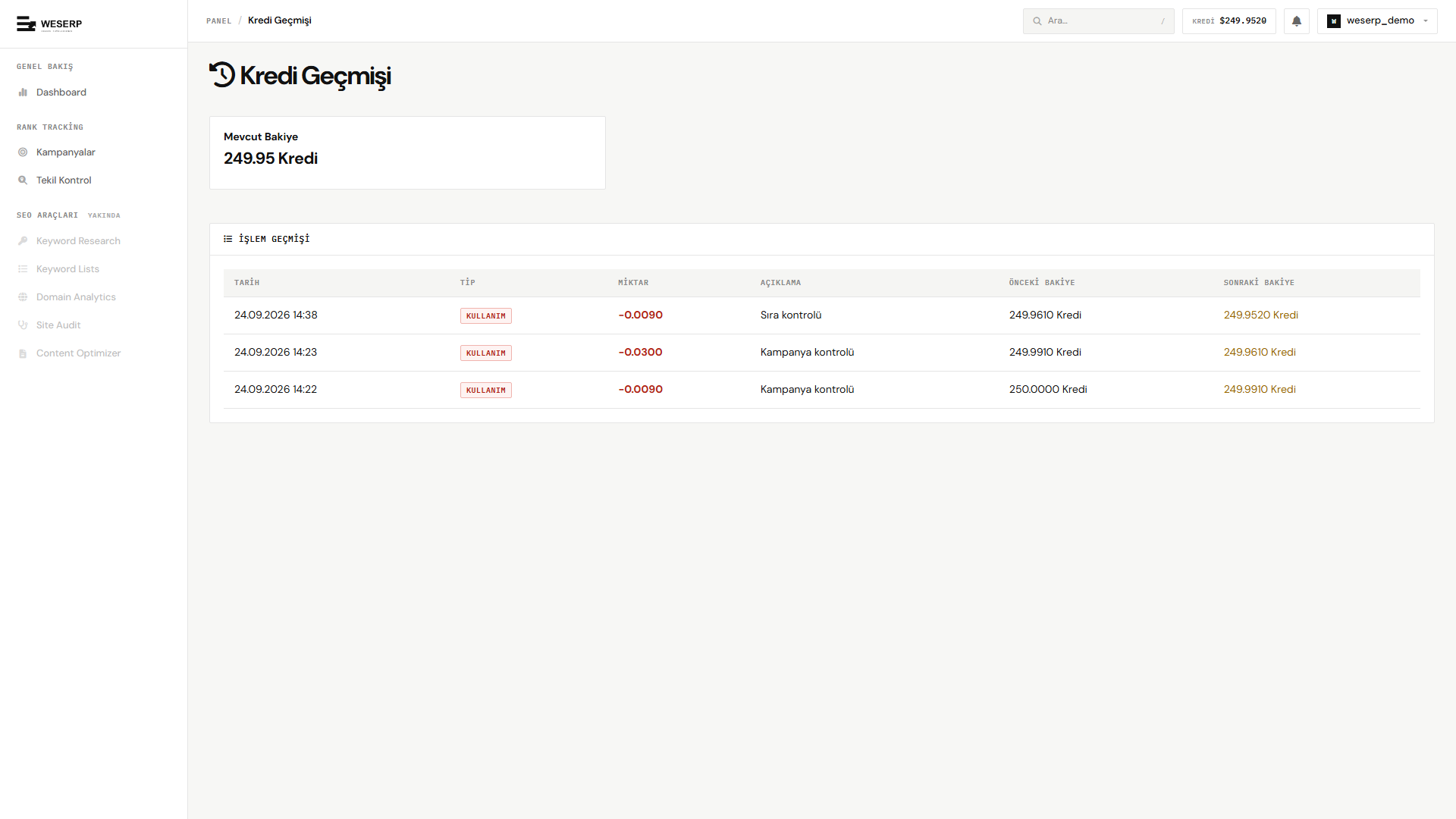
- The Mevcut bakiye card shows your current credits.
- Table columns: date, type (e.g. KULLANIM), amount, description (rank / campaign check), previous–next balance.
- See the product page pricing section for credit packs and cost examples.
FAQ
Campaign vs single check?
A campaign tracks many keywords under one domain (manual or scheduler). A single check is a quick, standalone lookup for one keyword.
How should I enter the domain?
Use the root domain without https:// or www.: example.com.
What search depth should I use?
100 works for most sites. Deeper lookups scan more results and can cost more credits.
How does the scheduler affect credits?
Each automated run creates one check per tracked keyword. Check critical terms often and others less frequently to control spend.